Preferences
The Preferences section allows you to customize various settings for your organization, including general preferences and data formatting options. It is available to organization admins in the ADMIN group of the gear menu in the top-right corner of the Cluvio UI.
When signing up, the data formatting is pre-configured from a country preset matching your location; you can adjust it here at any time.
General
The General section lets you configure organization-wide settings.
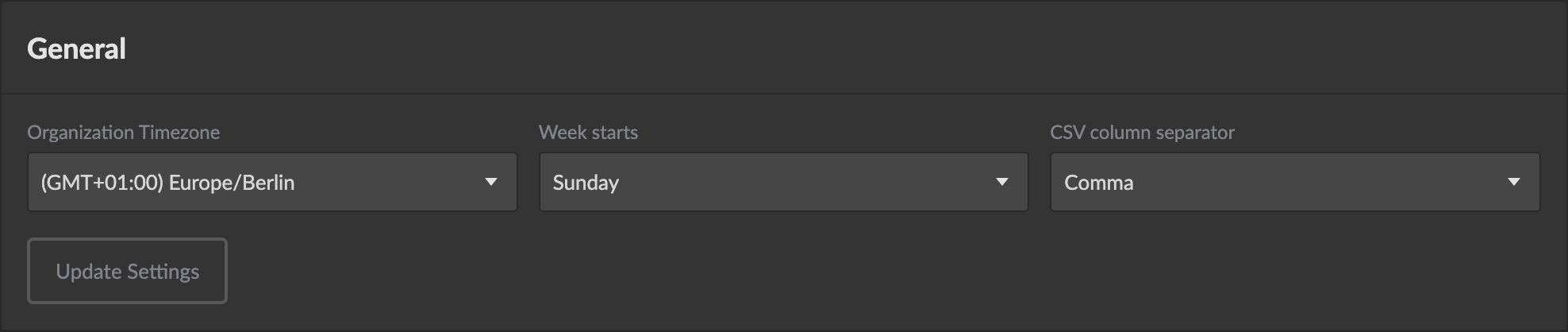
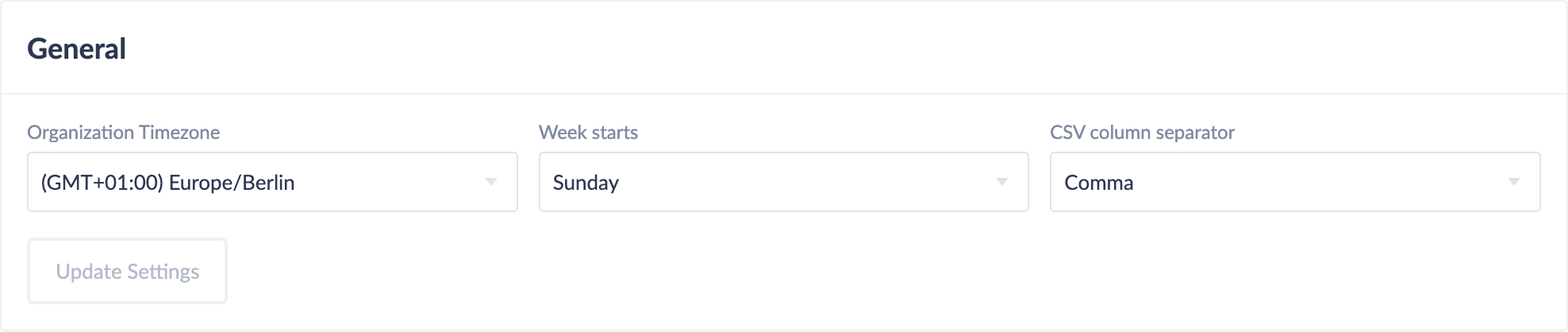
Organization Time Zone
Set the default time zone for your organization. It is used for sending alerts and scheduled e-mails at the desired time, and for dashboards' refresh anchor times. It does not, on its own, affect the data shown in reports, but it can be selected as a Dashboard Time Zone — see Organization Time Zone for details.
Week Starts
Choose which day of the week should be considered the first day:
- Monday - Common in Europe and many other countries
- Sunday - Common in the United States and some other countries
This setting affects week-based aggregations and date filters throughout your dashboards and reports.
Note: After changing this setting, you may need to update the saved default aggregation on your dashboards.
CSV Column Separator
Select the character used to separate columns when exporting data to CSV format:
- Comma (,) - Standard CSV format
- Semicolon (;) - Common in European countries where comma is used as decimal separator
- Tab - Tab-separated values format
Data Formatting
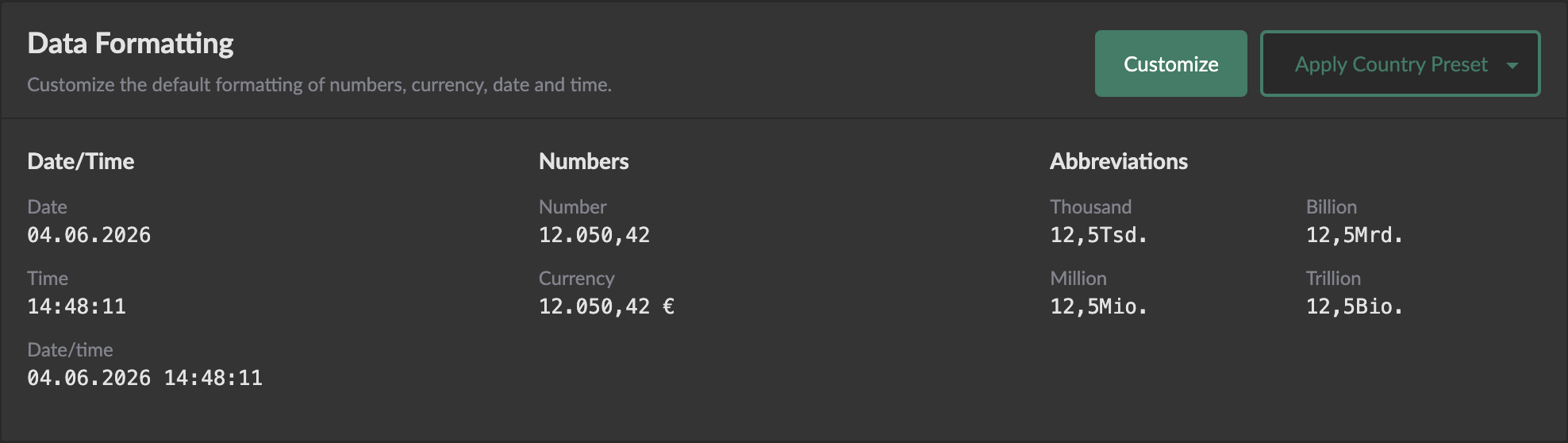
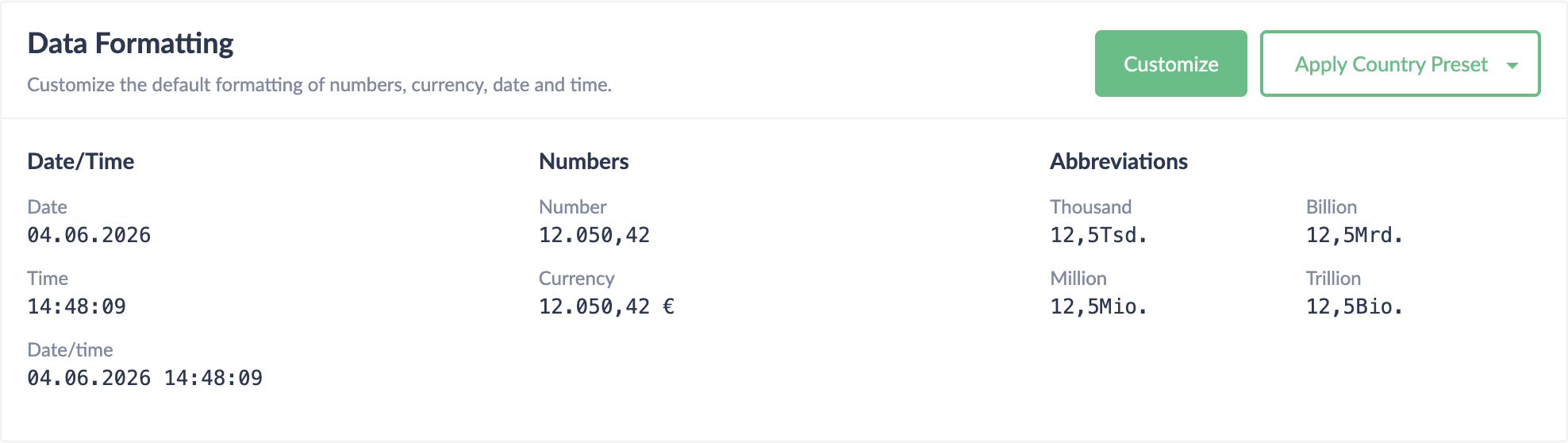
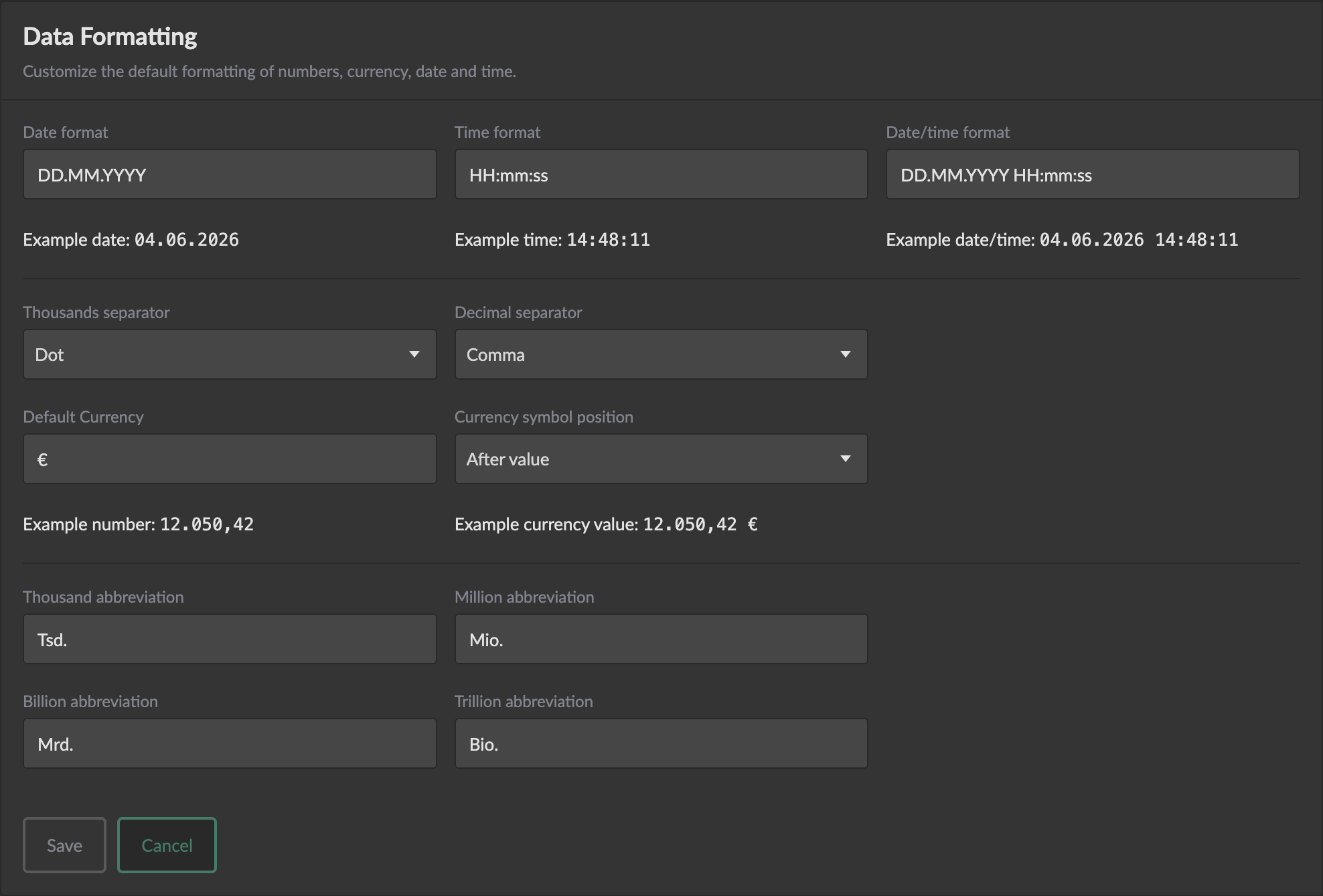
The Data Formatting section allows you to configure how numbers, dates, and times are displayed throughout your Cluvio dashboards and reports.
Country Presets
For quick setup, you can apply formatting settings based on common regional standards. Click Apply Country Preset and select from popular countries including:
- United States
- United Kingdom
- Germany
- France
- Spain
- Italy
- Netherlands
- Switzerland
- Canada
- Australia
- India
- Japan
- China
- Brazil
- Mexico
- South Korea
When you select a country preset, Cluvio automatically configures all data formatting settings according to that country's conventions. You can preview the settings and either:
- Save - Apply the preset settings
- Cancel - Discard the changes
- Customize... - Fine-tune individual settings based on the preset
Date Format
Specify how dates are displayed in your reports. Common formats include:
MM/DD/YYYY- US format (e.g., 12/31/2024)DD/MM/YYYY- European format (e.g., 31/12/2024)YYYY-MM-DD- ISO format (e.g., 2024-12-31)DD.MM.YYYY- German format (e.g., 31.12.2024)
See the Advanced Formatting section for detailed formatting options.
Time Format
Configure how times are displayed:
h:mm:ss A- 12-hour format with AM/PM (e.g., 3:45:30 PM)HH:mm:ss- 24-hour format (e.g., 15:45:30)h:mm A- 12-hour format without seconds (e.g., 3:45 PM)HH:mm- 24-hour format without seconds (e.g., 15:45)
Date-Time Format
Define how combined date and time values are displayed. This format typically combines your date and time formats:
MM/DD/YYYY h:mm:ss A- US format (e.g., 12/31/2024 3:45:30 PM)DD/MM/YYYY HH:mm:ss- European format (e.g., 31/12/2024 15:45:30)YYYY-MM-DD HH:mm:ss- ISO format (e.g., 2024-12-31 15:45:30)
Thousand Separator
Choose the character used to separate thousands in large numbers:
- No separator (e.g., 1000000)
- Space - Used in France and other countries (e.g., 1 000 000)
- Dot - Used in many European countries (e.g., 1.000.000)
- Comma - Used in US, UK, and other English-speaking countries (e.g., 1,000,000)
- Slash (e.g., 1/000/000)
The Switzerland country preset additionally uses the apostrophe separator customary there (e.g., 1'000'000).
Decimal Separator
Select the character used to separate the decimal part of numbers:
- Dot - Used in US, UK, and other English-speaking countries (e.g., 3.14)
- Comma - Used in many European countries (e.g., 3,14)
- Slash (e.g., 3/14)
The thousand separator and decimal separator should be different characters to keep numbers unambiguous.
Currency Symbol
Specify the currency symbol to display in financial values:
$- US Dollar€- Euro£- British Pound¥- Japanese Yen / Chinese Yuan₹- Indian Rupee₩- South Korean Won- Or any other currency symbol
Currency Symbol Position
Choose whether the currency symbol appears before or after the number:
- Before - Symbol appears before the number (e.g., $1,234.56)
- After - Symbol appears after the number (e.g., 1 234,56€)
Large Number Abbreviations
Configure the abbreviations used for large numbers in charts and reports:
- Thousand - Default:
k(e.g., 5k for 5,000) - Million - Default:
m(e.g., 2m for 2,000,000) - Billion - Default:
mm(e.g., 1mm for 1,000,000,000) - Trillion - Default:
bn(e.g., 3bn for 3,000,000,000,000)
Country presets set these to the locally customary abbreviations (e.g., K / M / B / T for the United States). These abbreviations help make large numbers more readable in visualizations where space is limited.
Advanced Formatting
Moment.js Date and Time Formatting
Cluvio uses Moment.js for date and time formatting. You can create custom formats using the following tokens:
Date Tokens
| Token | Output | Description |
|---|---|---|
M | 1-12 | Month number |
MM | 01-12 | Month number with leading zero |
MMM | Jan-Dec | Month abbreviation |
MMMM | January-December | Full month name |
D | 1-31 | Day of month |
DD | 01-31 | Day of month with leading zero |
d | 0-6 | Day of week (Sunday is 0) |
dd | Su-Sa | Minimal day name |
ddd | Sun-Sat | Short day name |
dddd | Sunday-Saturday | Full day name |
YY | 24 | Two-digit year |
YYYY | 2024 | Four-digit year |
Time Tokens
| Token | Output | Description |
|---|---|---|
H | 0-23 | Hour (24-hour format) |
HH | 00-23 | Hour with leading zero (24-hour format) |
h | 1-12 | Hour (12-hour format) |
hh | 01-12 | Hour with leading zero (12-hour format) |
m | 0-59 | Minute |
mm | 00-59 | Minute with leading zero |
s | 0-59 | Second |
ss | 00-59 | Second with leading zero |
A | AM/PM | Post or ante meridiem (uppercase) |
a | am/pm | Post or ante meridiem (lowercase) |
Common Format Examples
| Format | Example Output |
|---|---|
YYYY-MM-DD | 2024-12-31 |
DD/MM/YYYY | 31/12/2024 |
MM/DD/YYYY | 12/31/2024 |
MMMM D, YYYY | December 31, 2024 |
ddd, MMM D | Tue, Dec 31 |
HH:mm:ss | 15:45:30 |
h:mm:ss A | 3:45:30 PM |
YYYY-MM-DD HH:mm:ss | 2024-12-31 15:45:30 |
DD.MM.YYYY HH:mm | 31.12.2024 15:45 |
MMM D, YYYY h:mm A | Dec 31, 2024 3:45 PM |
You can combine these tokens with any separator characters (spaces, slashes, periods, hyphens, etc.) to create custom formats that match your organization's conventions.
Note: Data formatting preferences apply organization-wide to all users.