Embed with your own filter controls
You want Cluvio dashboards rendered inside your product, but you don't want Cluvio's filter toolbar to show. Instead, your own UI controls should drive what's displayed — date pickers, dropdowns, segment toggles, whatever fits your product.
The shape you're aiming at:
+------------------------------+
| Your app                     |
|                              |
|  [ Your filter UI ▾ ▾ ▾ ]    |
|       ↓ postMessage          |
|  +------------------------+  |
|  | Cluvio dashboard       |  |  ← iframe, no toolbar
|  |  (refreshes when your  |  |
|  |   UI changes)          |  |
|  +------------------------+  |
+------------------------------+
Steps
1. Configure the sharing link
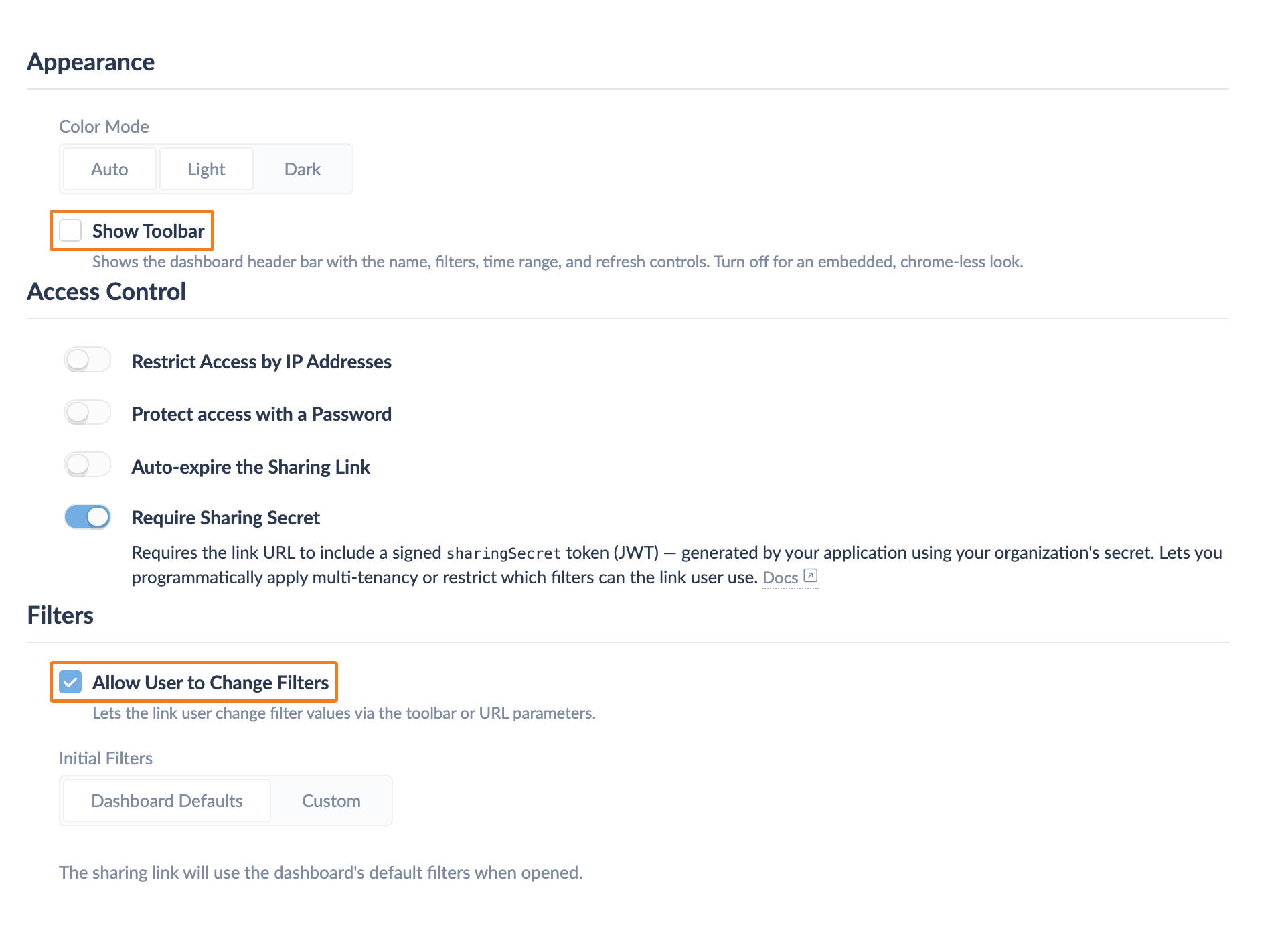
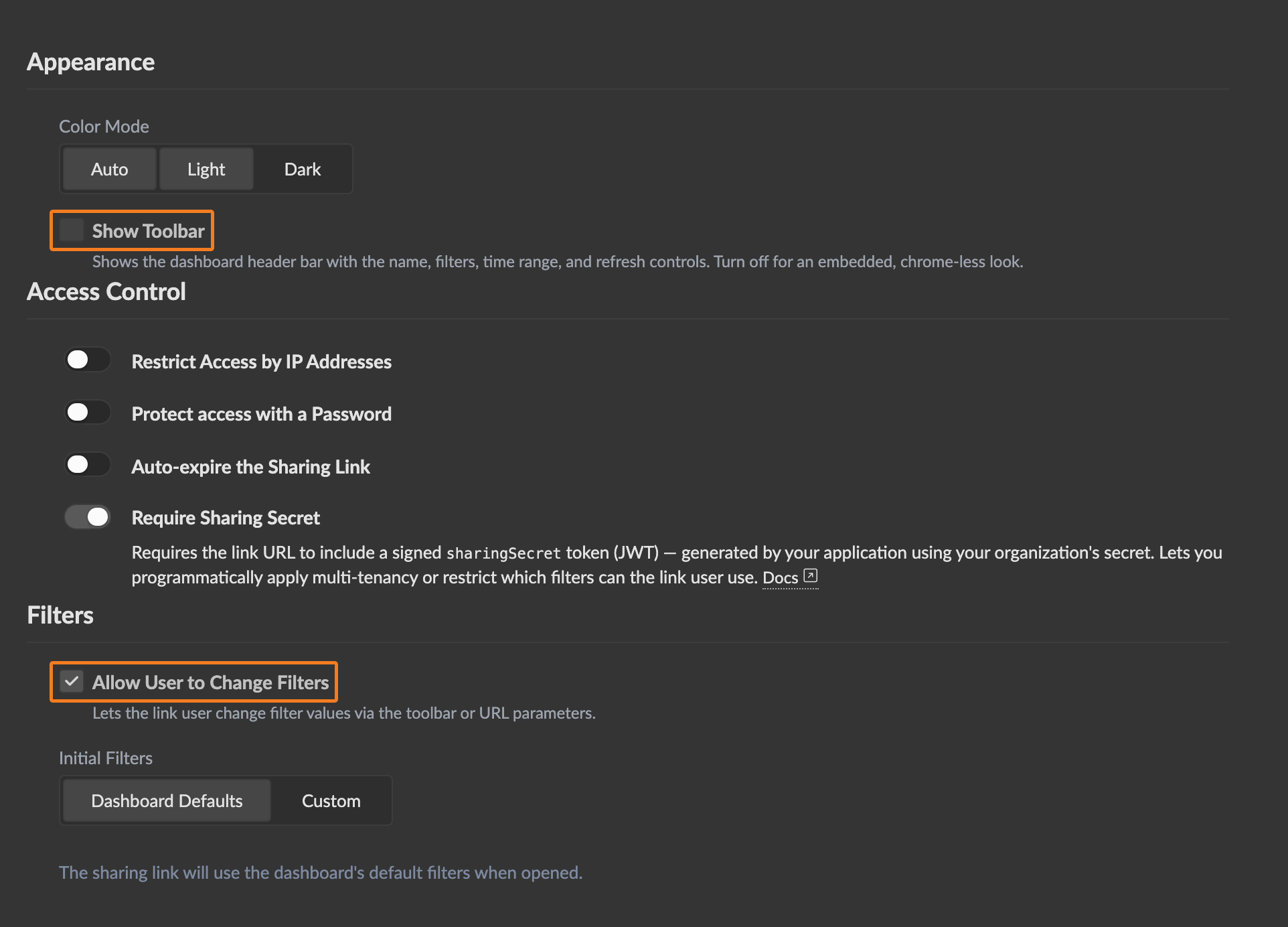
In the dashboard's Manage Sharing → Add Sharing Link flow, on the new link's Settings tab:
- Show Toolbar: off (your app provides the controls).
- Allow User to Change Filters: on (your
postMessagecalls update filter values via URL parameters under the hood, which this enables). - Require Sharing Secret: on if you want the link locked to your application. See Embed a dashboard scoped per customer for the per-user secret generation.
2. Embed the iframe with an id
Render the iframe in your page and give it an id you can target from JavaScript:
<iframe id="cluvio-frame"
  src="<sharing link URL, plus sharingSecret if required>"
  width="100%" height="600" frameborder="0"></iframe>
3. Drive it via postMessage from your UI
The embedded dashboard listens for postMessage
actions sent to the iframe's contentWindow. The most common one
is applyFilters, which sets one or more Cluvio filter values:
function applyCluvioFilter(name, value) {
  const message = {
    action: 'applyFilters',
    params: { [name]: value }
  };
  document.getElementById('cluvio-frame')
    .contentWindow
    .postMessage(JSON.stringify(message), '*');
}
Wire it to your own UI controls:
<select onchange="applyCluvioFilter('aggregation', this.value)">
  <option value="day">Day</option>
  <option value="week">Week</option>
  <option value="month">Month</option>
</select>
The dashboard re-runs queries with the new filter value as soon as the message lands.
4. (Optional) Listen for events from Cluvio
Cluvio also sends events back via postMessage — for example
drillSelect when
the user clicks a drill-down link, or
secretExpired
when the sharing secret is about to run out.
window.addEventListener('message', (event) => {
  if (event.origin !== 'https://dashboards.cluvio.com') return;
  const msg = typeof event.data === 'string'
    ? JSON.parse(event.data) : event.data;
  if (msg.event === 'drillSelect') {
    // … react in your app's UI
  }
});
See Actions & Events for the full list of actions you can send in and events you can listen for.
Tip — verify in the browser console
When viewing a Cluvio sharing link directly in a browser, run
cluvioHelp() in the developer console to print every action and
event the embedded window supports. See
Tips & Tricks → cluvioHelp().
Related
- Reference: Embedded Analytics → Common Embeddings #4 — the Tickit sample uses this pattern end-to-end.
- Reference: Actions & Events.
- How-To: Embed a dashboard scoped per customer.