Static Tables from Excel
Upload an Excel Workbook and turn each sheet into a fully queryable SQL table in Cluvio — no database setup needed. This is a quick way to analyze spreadsheet data, third-party exports, or reference datasets.
Requirements
- File type: Only the standard Excel Workbook file format .xlsx is supported. See also Excel File Formats.
- File size: A single workbook file can be at most 250 MB in size.
- Data only: Only Excel data can be imported, not Excel charts.
Creating Static Tables
Step 1: Upload File
To create static tables from an Excel Workbook:
- Select Add Static Table on the datasources overview page.
- Click Select File and choose your Excel Workbook file.
- The file uploads securely to Cluvio's servers.
- Cluvio analyzes the file and all included sheets.
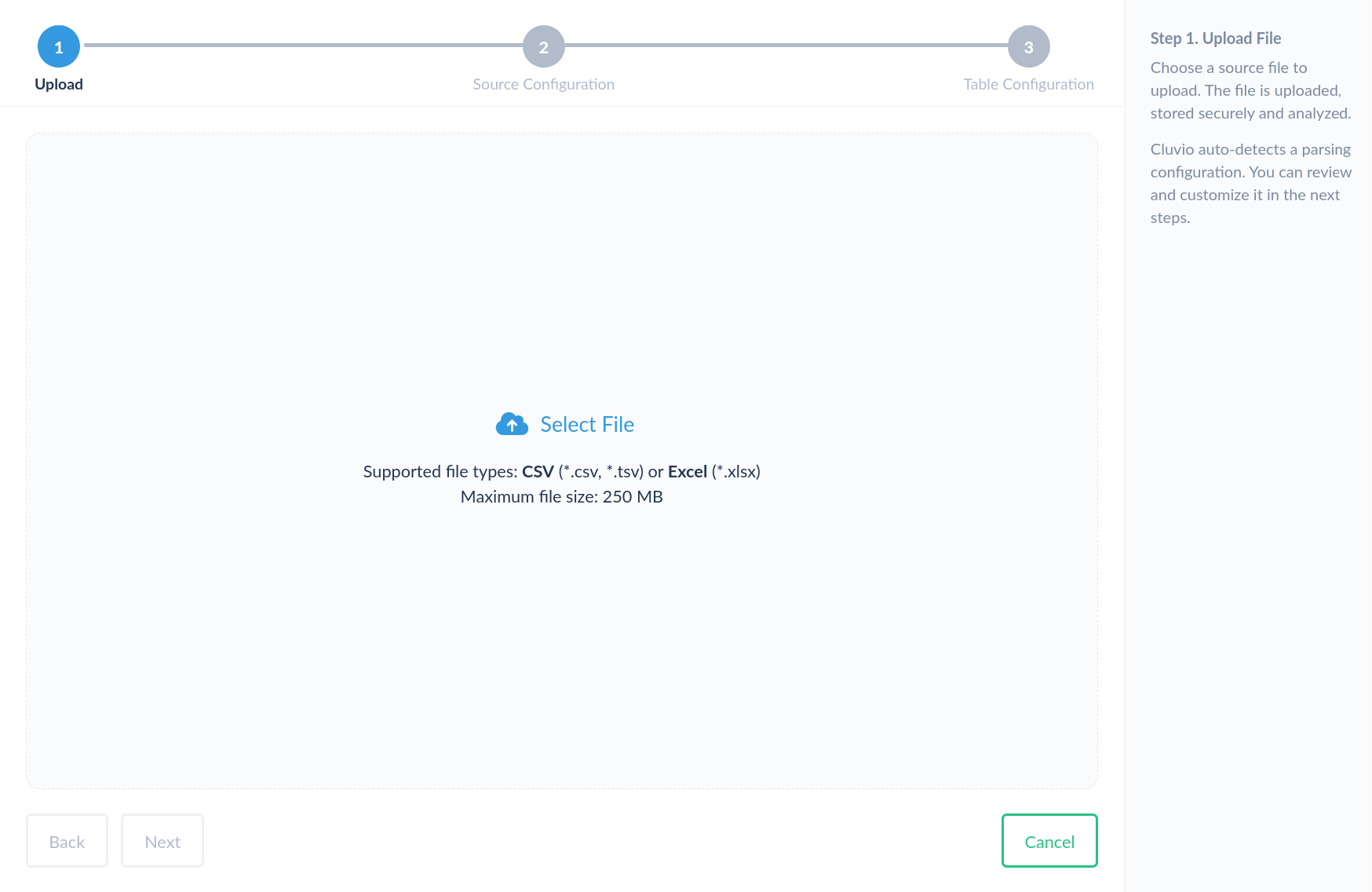
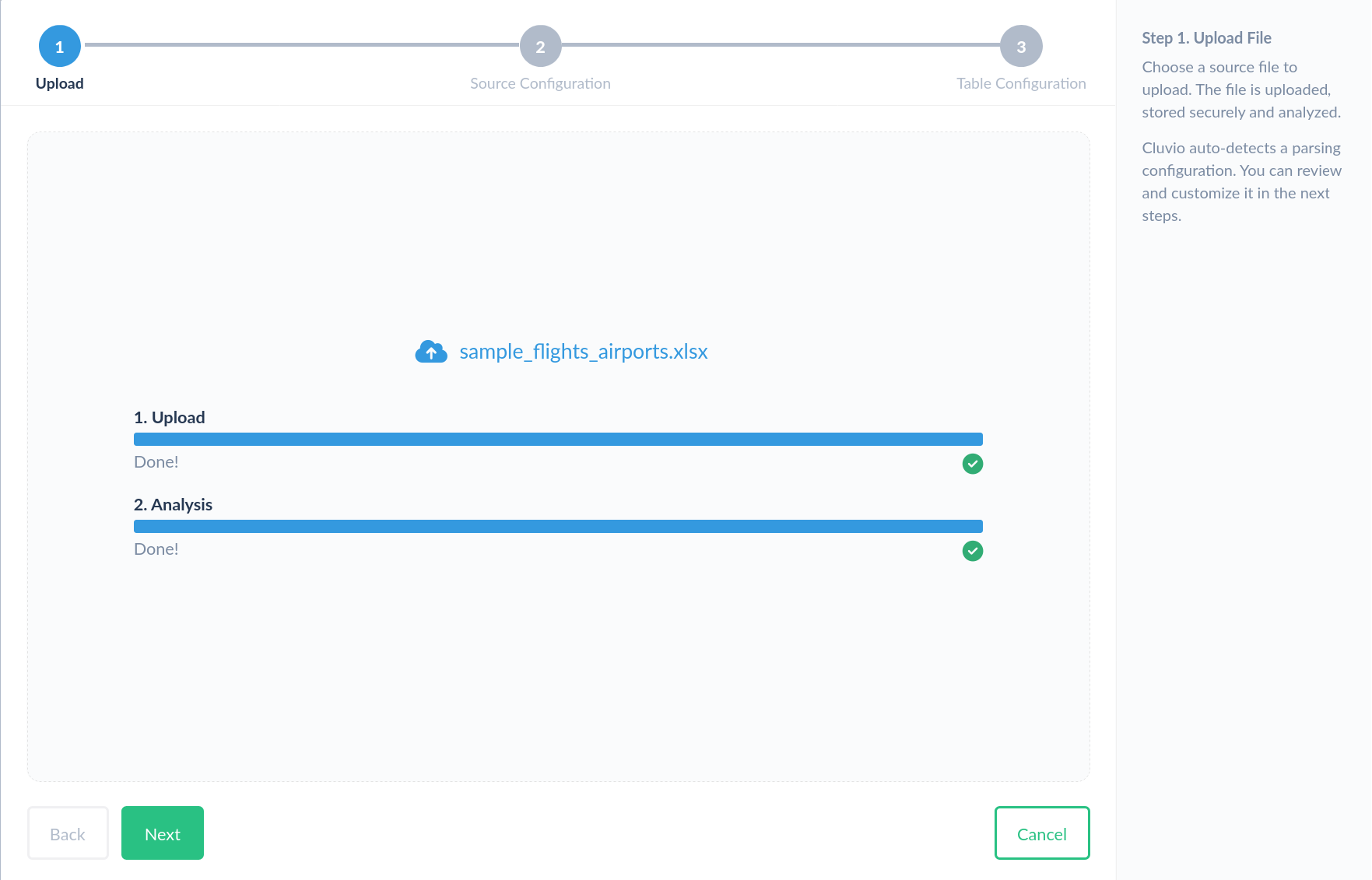
After successful upload and analysis, proceed to the next step to configure how Cluvio extracts the tabular data from your file and which sheets to include.
Step 2: Source Configuration
Select a time zone and the sheets to import as static tables. By default, all sheets are imported as tables.
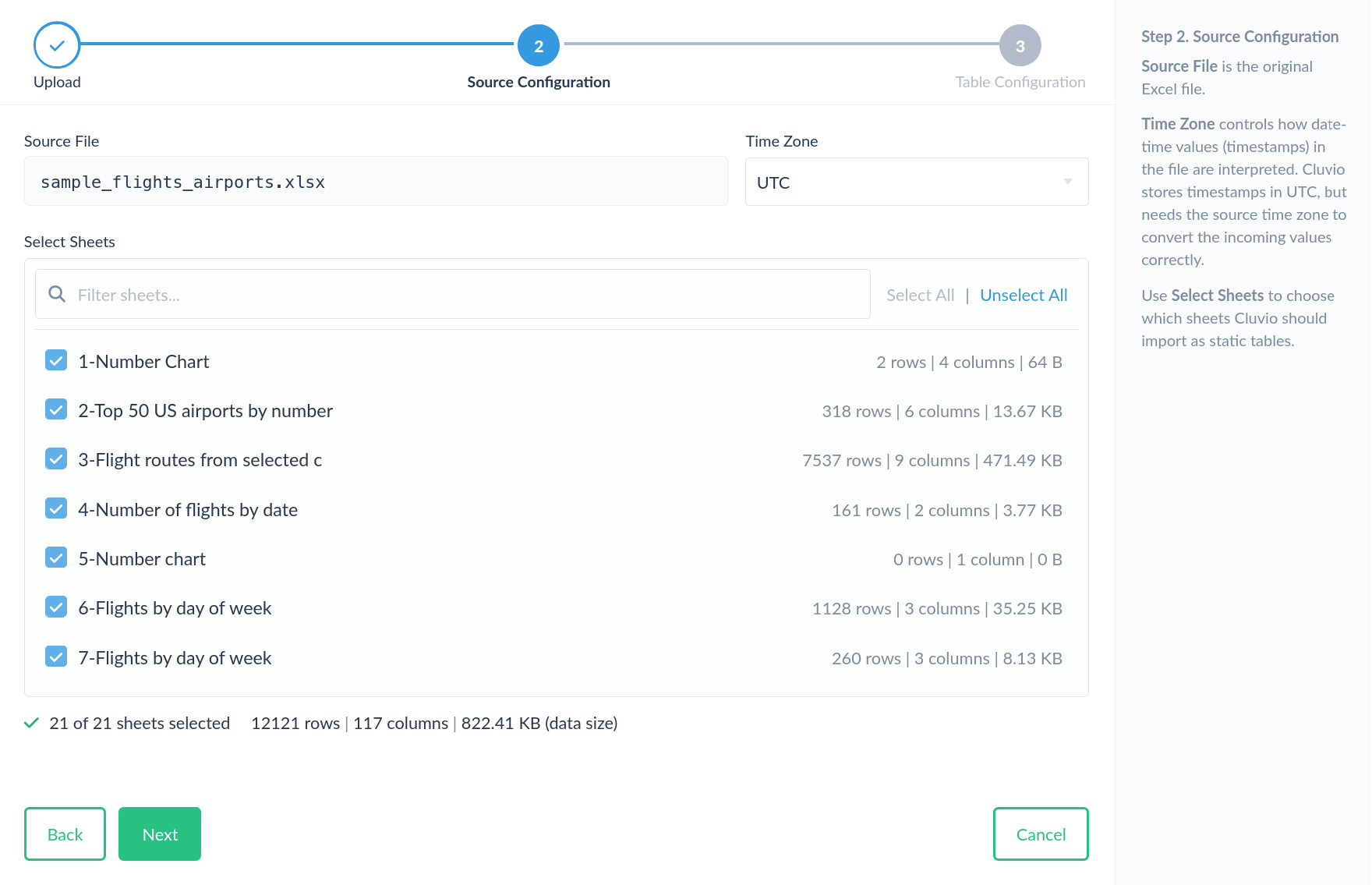
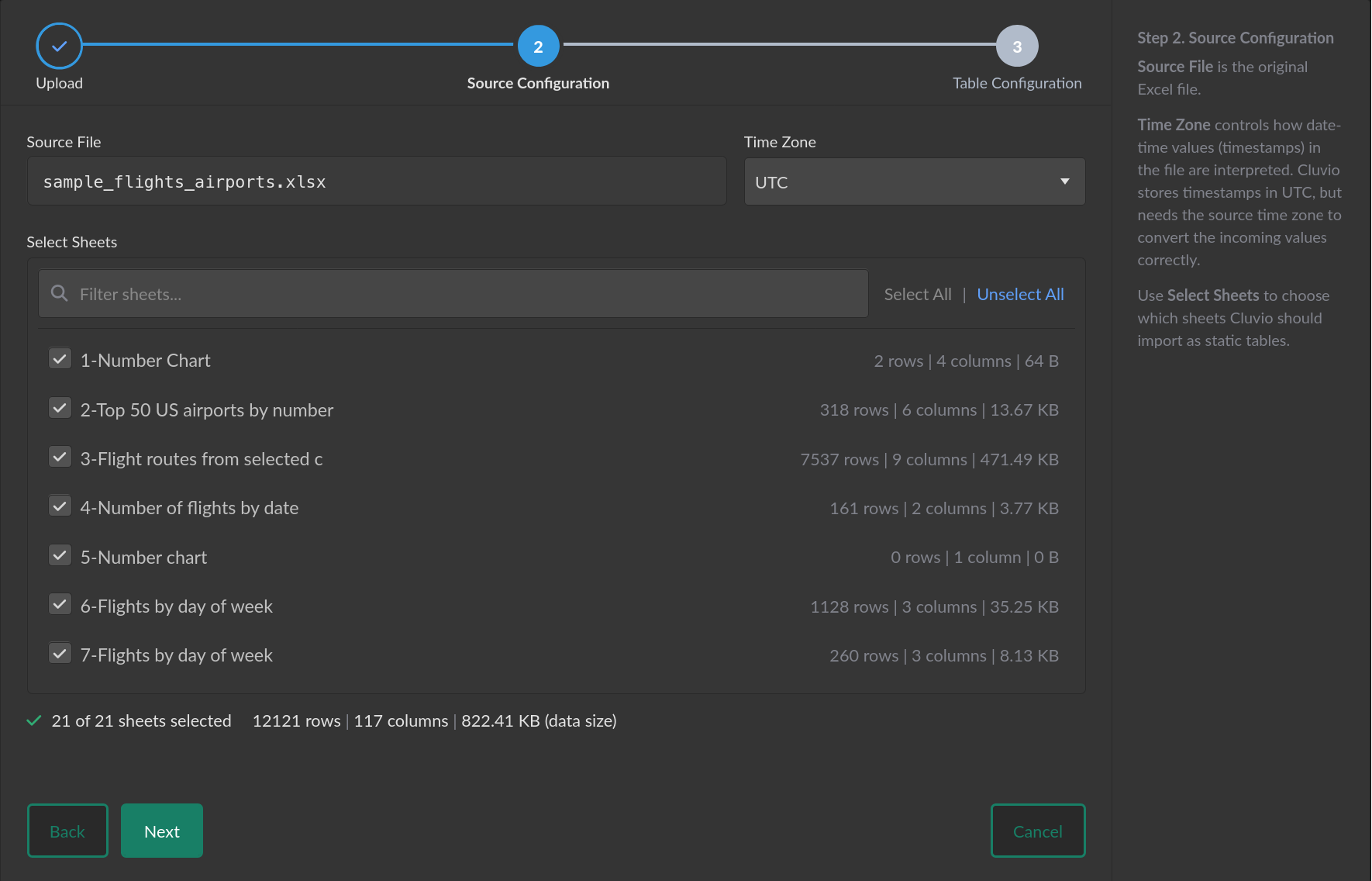
Static tables store all date/time values in UTC. If the values in your file do
not represent UTC, choose the appropriate time zone from the drop-down. For
example, if your file contains the value 2025-01-15 14:30 and you select
America/New_York, Cluvio interprets this value as 2:30 PM Eastern Time and it
is converted to UTC accordingly. When querying your static table, you will
always see date/time values in UTC unless a dashboard time
zone is in effect.
When you are happy with your sheet selection, proceed to the next step.
Step 3: Table Configuration
In this step, use the sheet selector to inspect, configure and preview the tables that will be created for each sheet that was included in step 2.
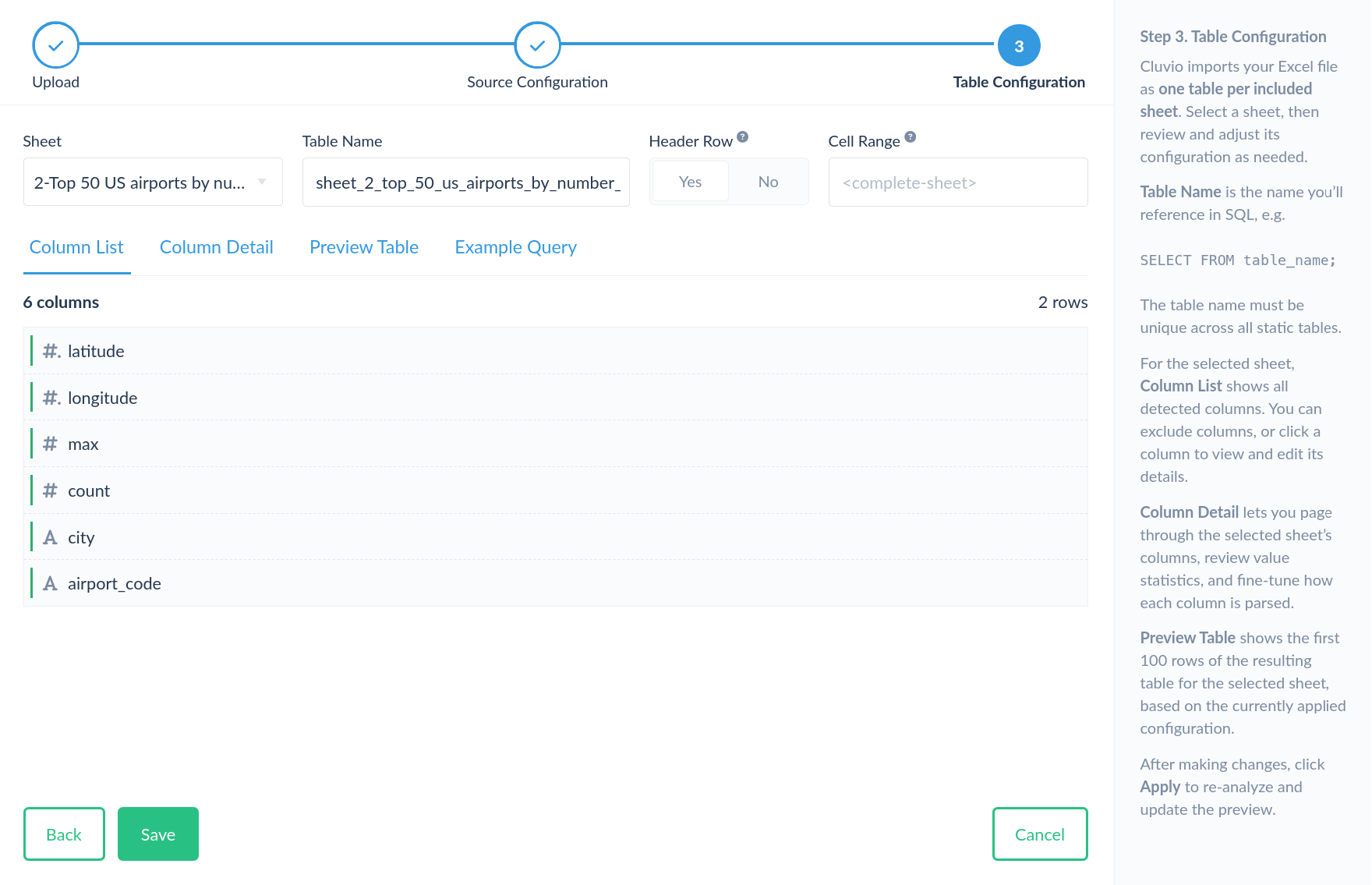
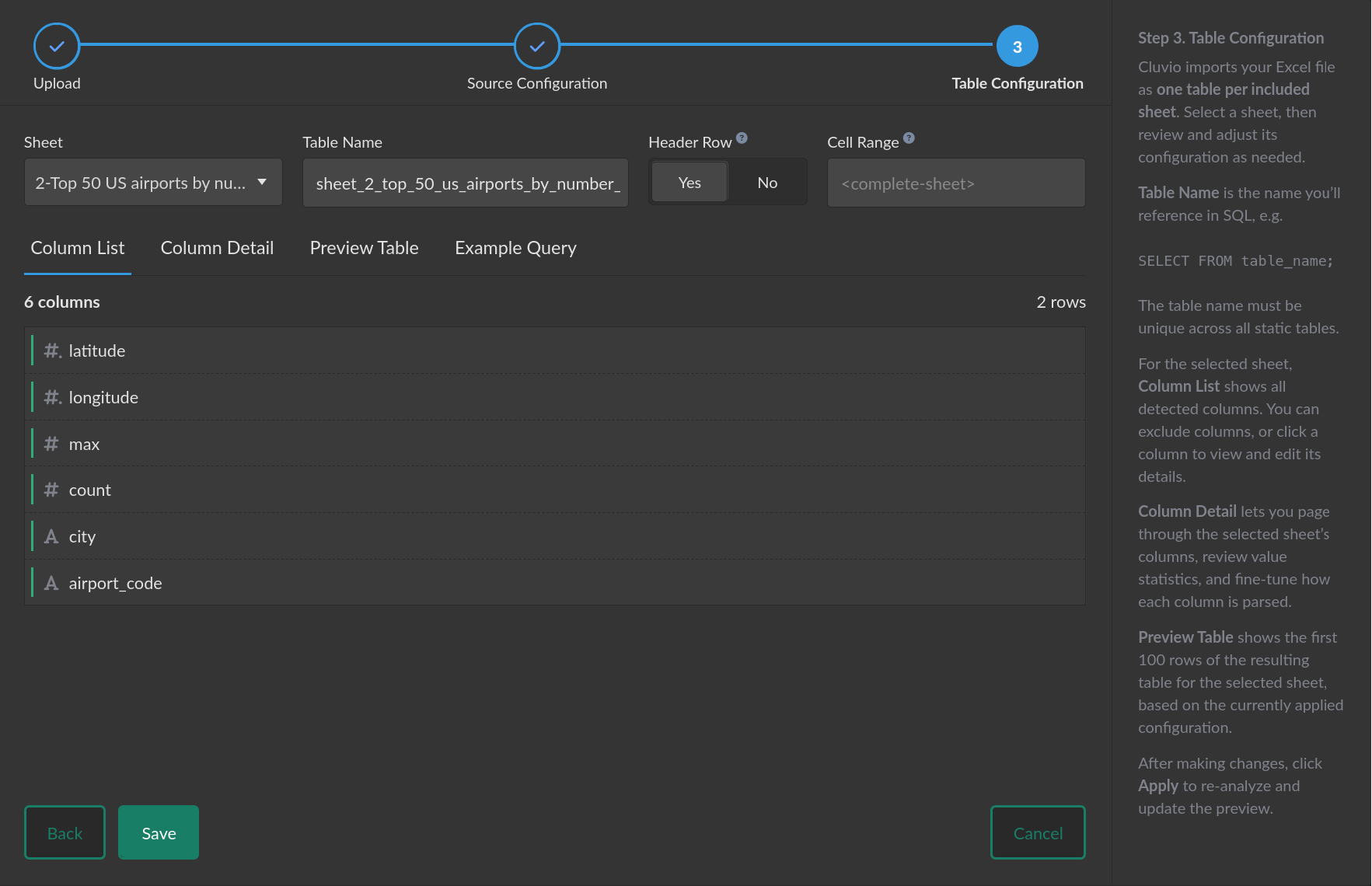
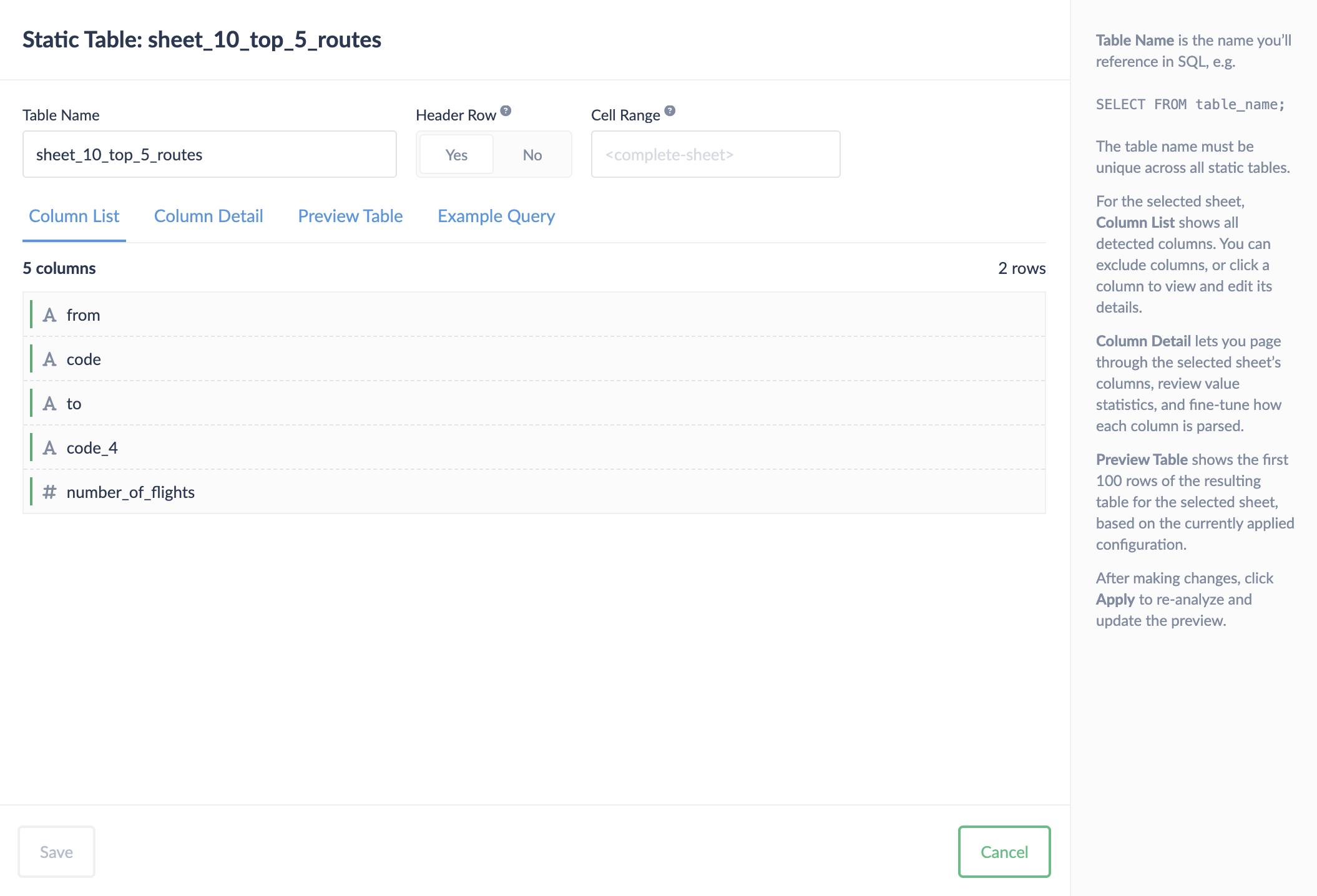
Choose a Table Name for each sheet — this is what you'll reference in SQL queries. Each name must be unique across all static tables.
The Header Row is automatically detected, if possible. If the first
non-empty row of the sheet contains column names, select Yes, otherwise No.
The Cell Range allows parsing only a specific rectangular cell range from
a sheet. Use the standard Excel range selectors like A5:C10 or column ranges
of the form A:F. This is useful if your sheet contains multiple different "tables".
Only a single range can be configured per sheet.
Use the Column List to see all detected columns and exclude any you don't need.
Select the Column Detail tab or click on any column in the list to inspect it in detail:
- Value distribution histograms and frequency analysis.
- Value counts and min/max values.
- The column's total data size.
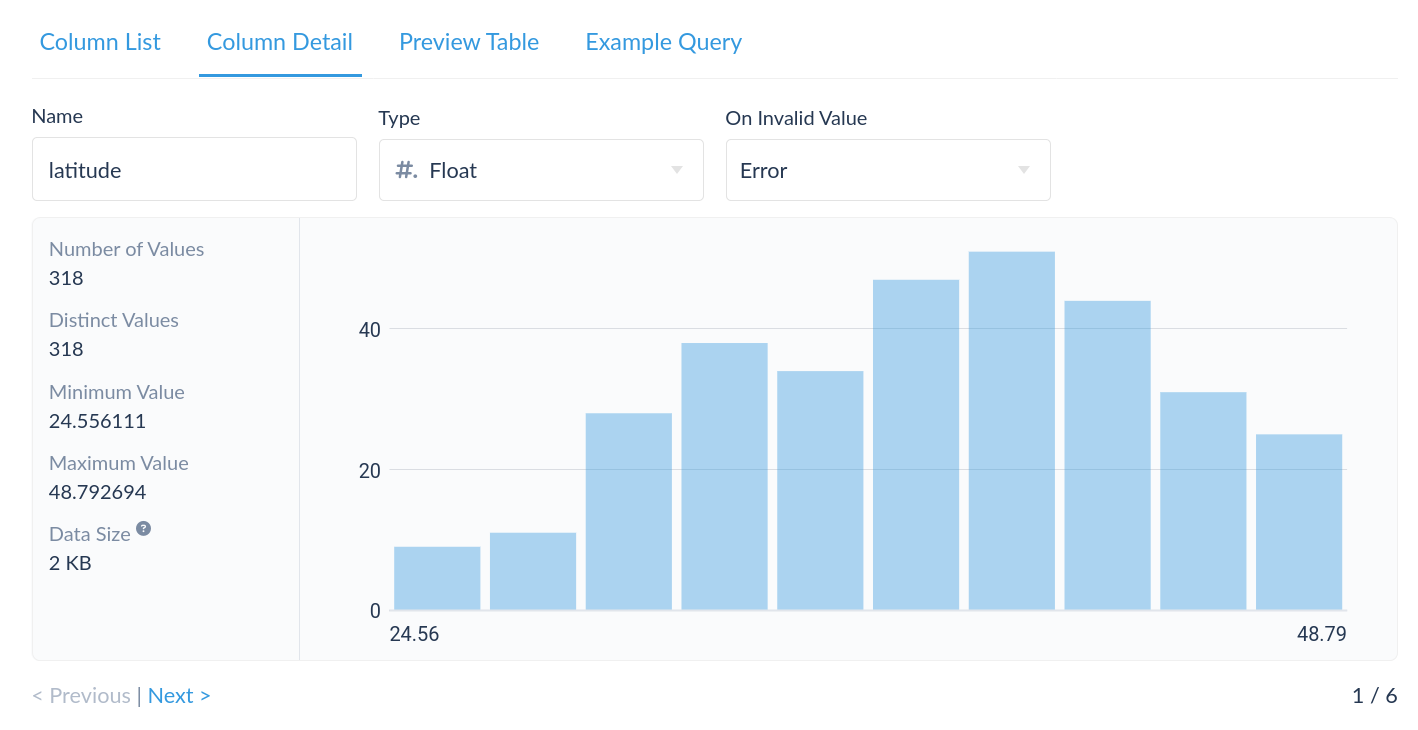
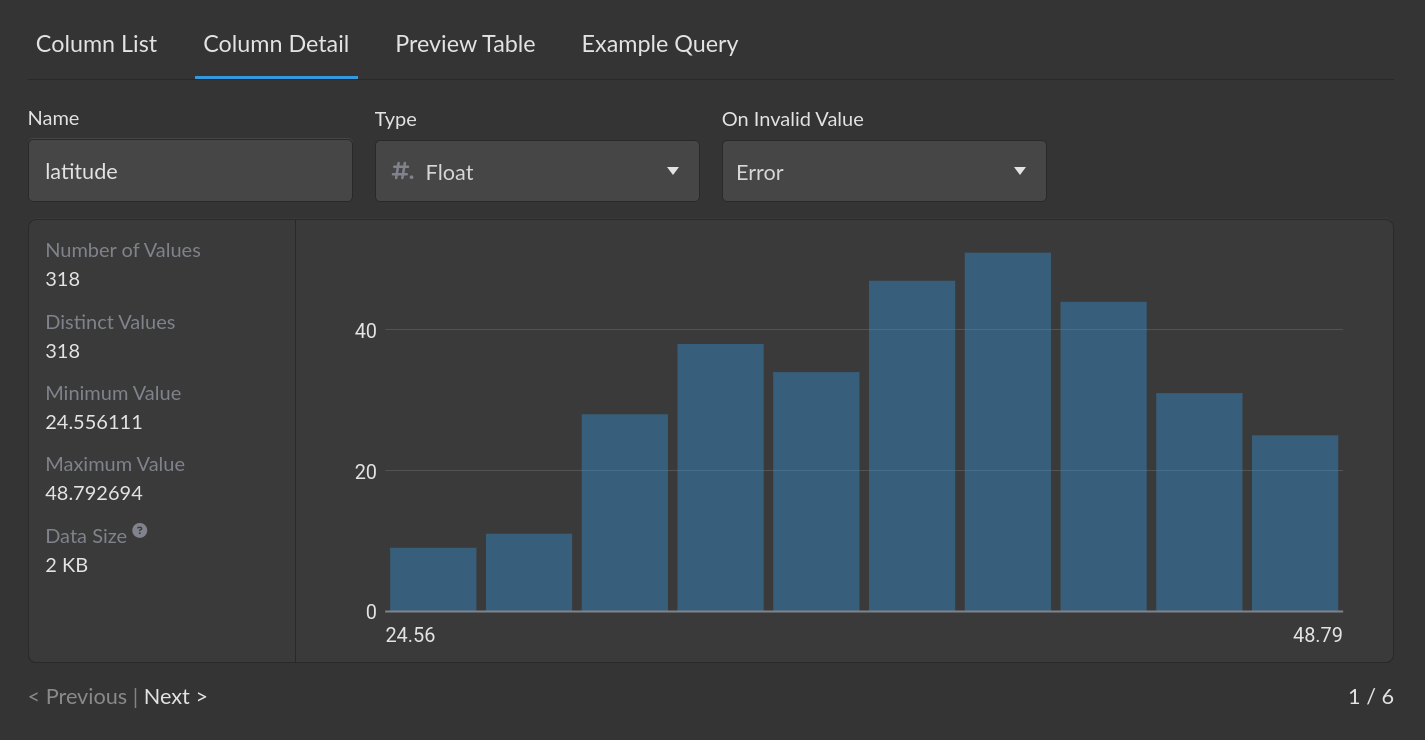
You can customize column names and types. The On Invalid Value setting controls what happens when a value cannot be converted to the column's type:
- Error (default) — saving is disabled until the issue is resolved, e.g. by changing the column type or fixing the source data.
- Skip Value — the invalid value is replaced with NULL.
- Skip Row — the entire row containing the invalid value is excluded.
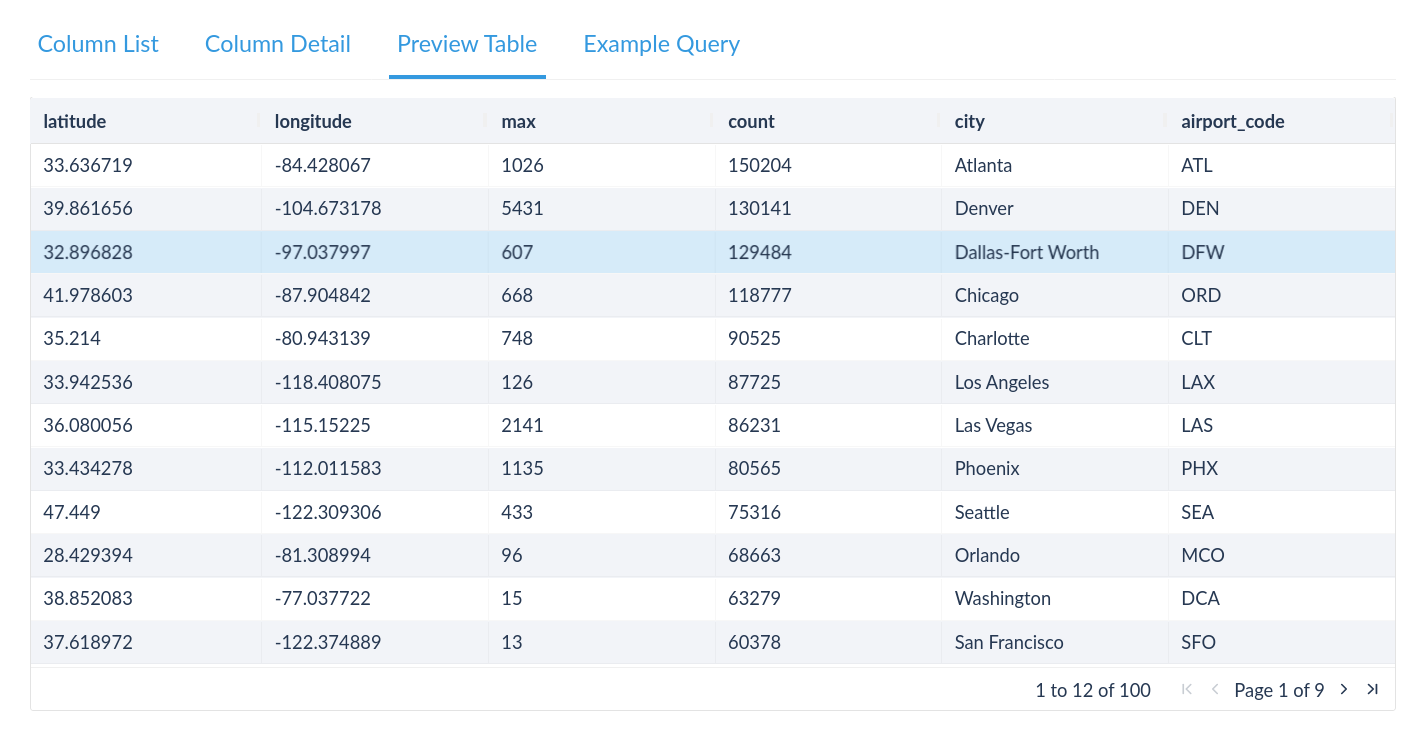
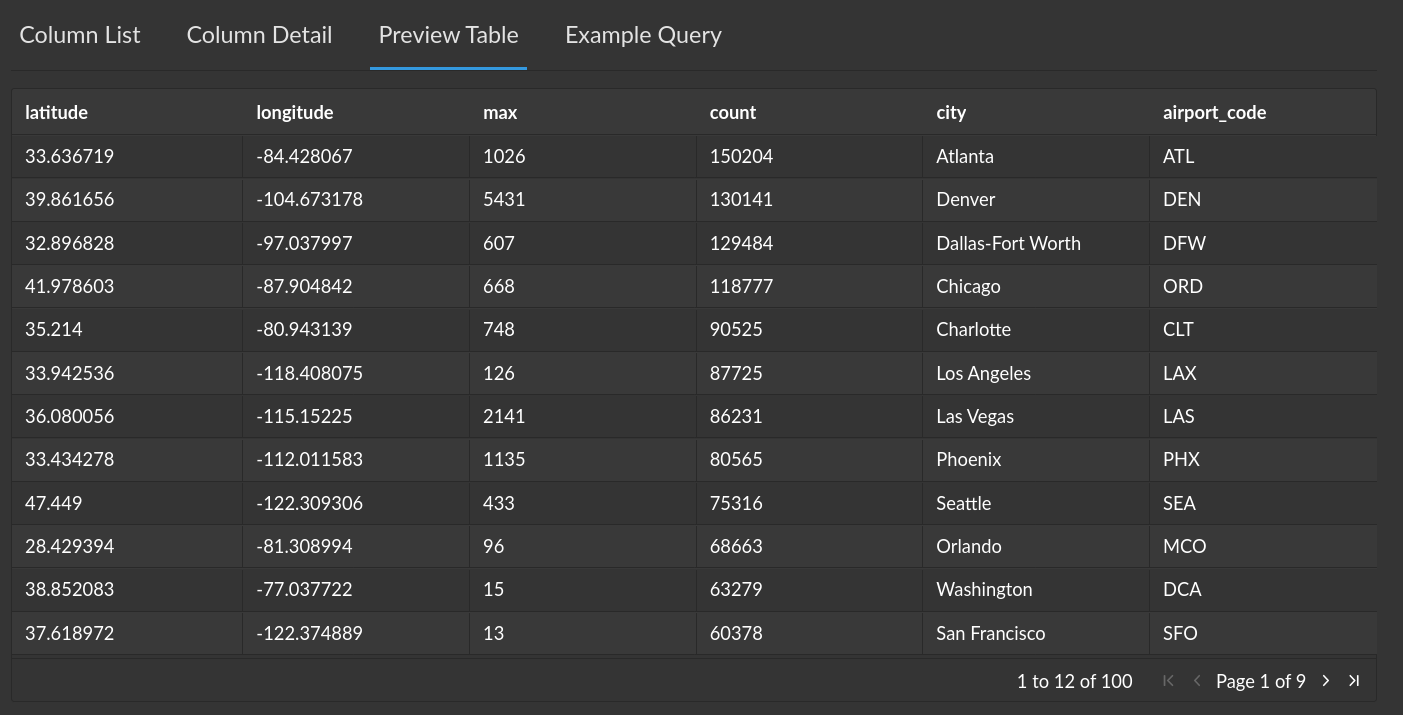
When the currently applied configuration is valid, the Preview Table tab shows the first 100 rows of parsed data as they will appear in Cluvio when querying the table. Verify that the data looks correct.
If you are happy with the table configuration, click Save.
Querying Static Tables
After creating static tables from an Excel file, you can query them using the Static Tables datasource in the report editor. See Using Static Tables.
Reconfiguring Static Tables
Cluvio retains the original file, so you can change a static table's configuration at any time — Cluvio applies the updated settings and rebuilds the tables.
There are two ways to reconfigure:
Change Table Configuration
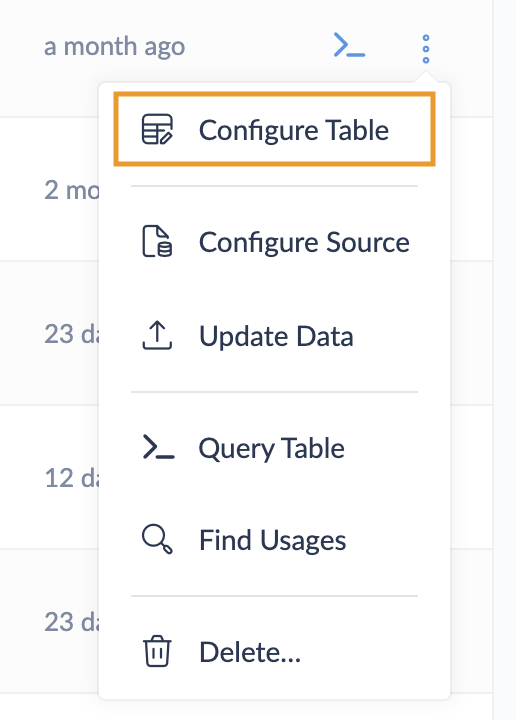
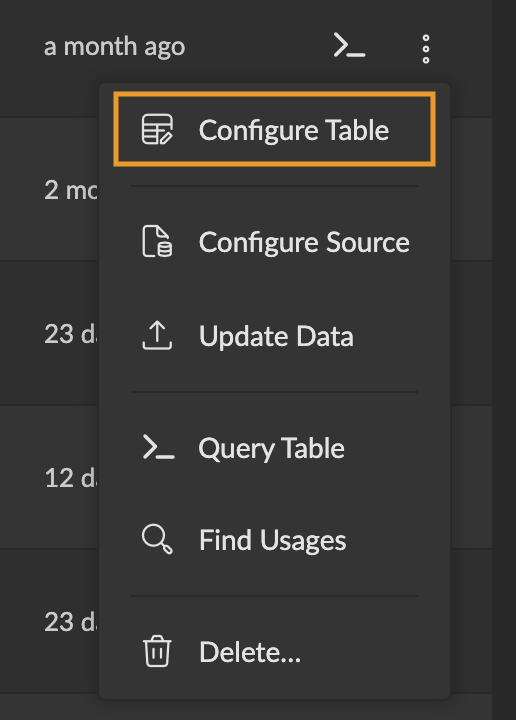
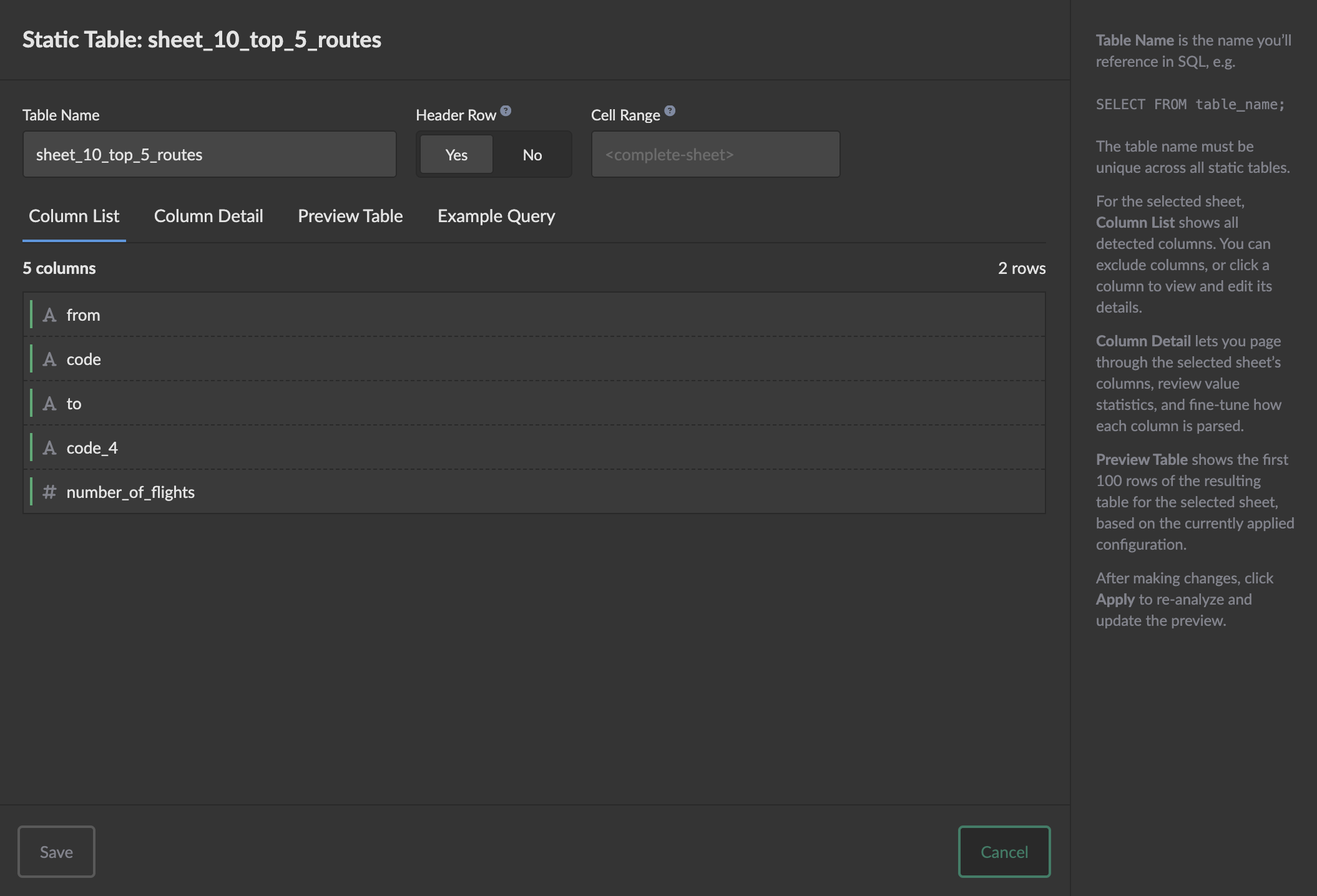
Click on the table name in the static tables list, or select Configure Table from the drop-down menu. This opens a modal for the selected table where you can adjust column names, types, and formats, review value distributions, and preview the data — just as in the original upload.
Change Source Configuration
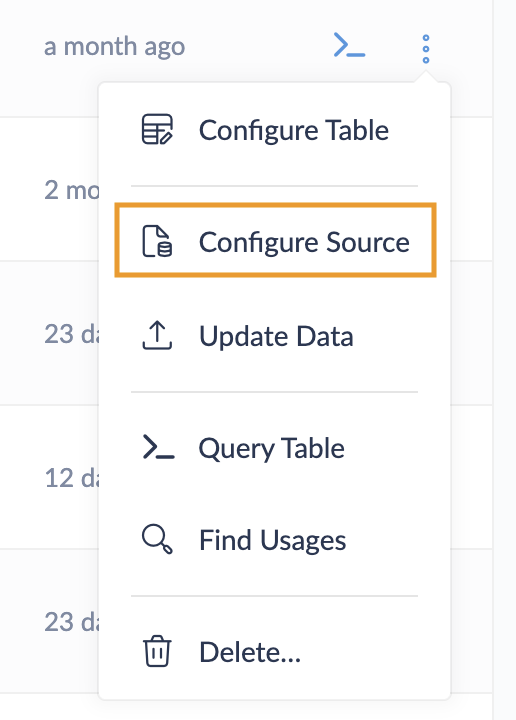
Click on the source file type (e.g. xlsx) in the static tables list, or
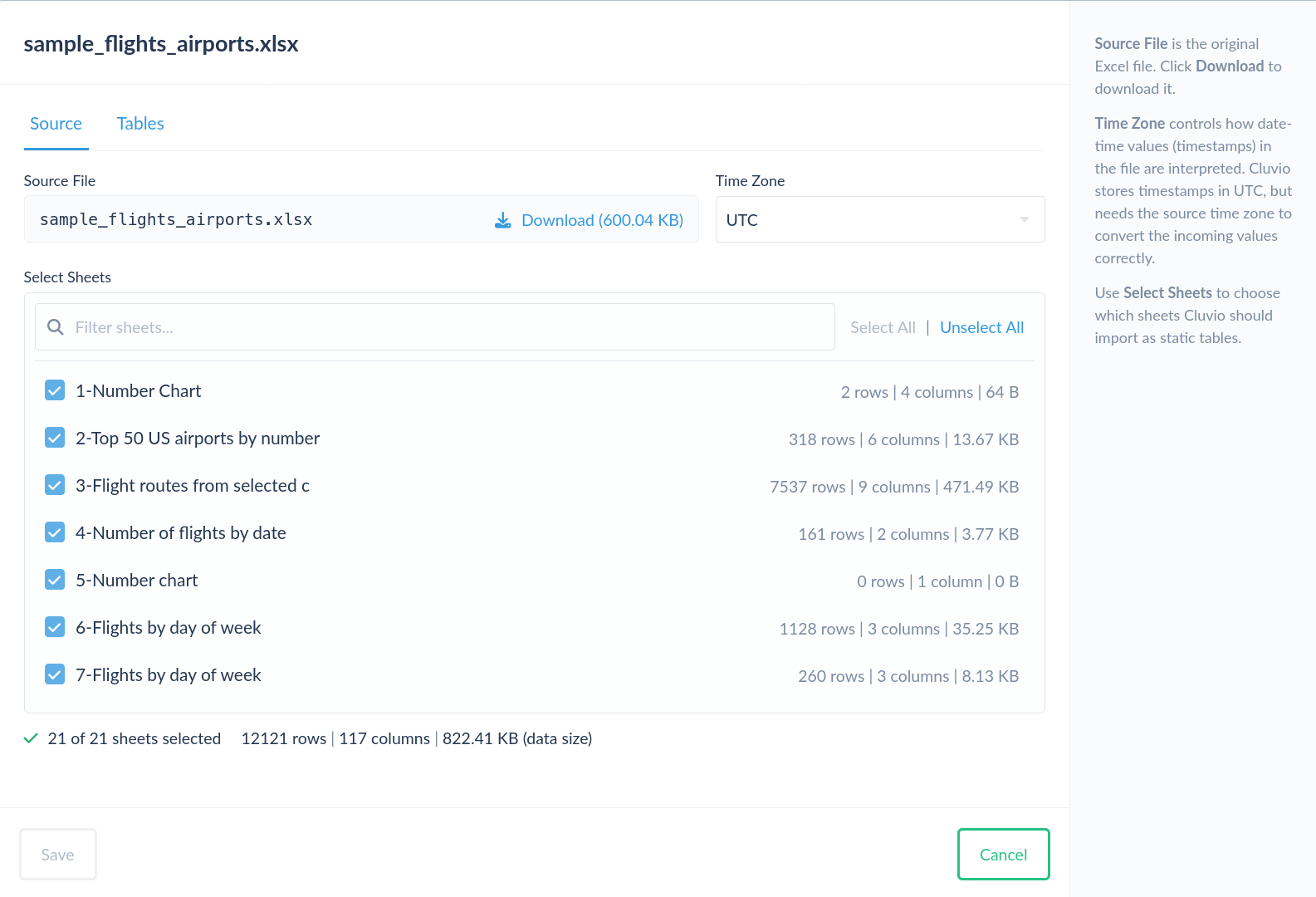
select Configure Source from the drop-down menu. This opens a full
configuration modal where you can change the time zone, select which sheets to
include, and configure any of the resulting tables — just as in
the original upload. You can also download the
original file.
Updating Data
To update your static tables with new data, use the Update Data option from the drop-down menu to upload a new Excel file.
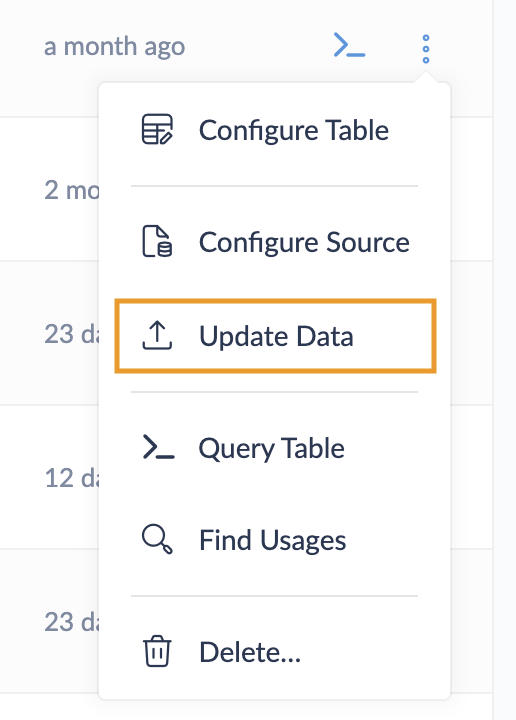
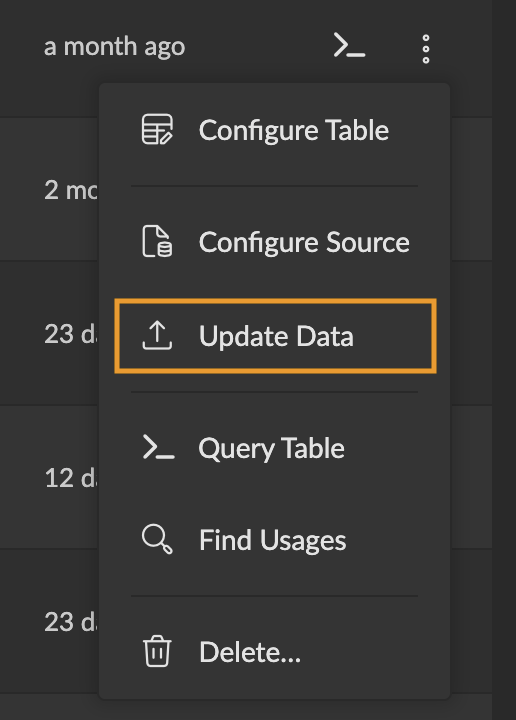
Select the new source file, just as in the original upload.
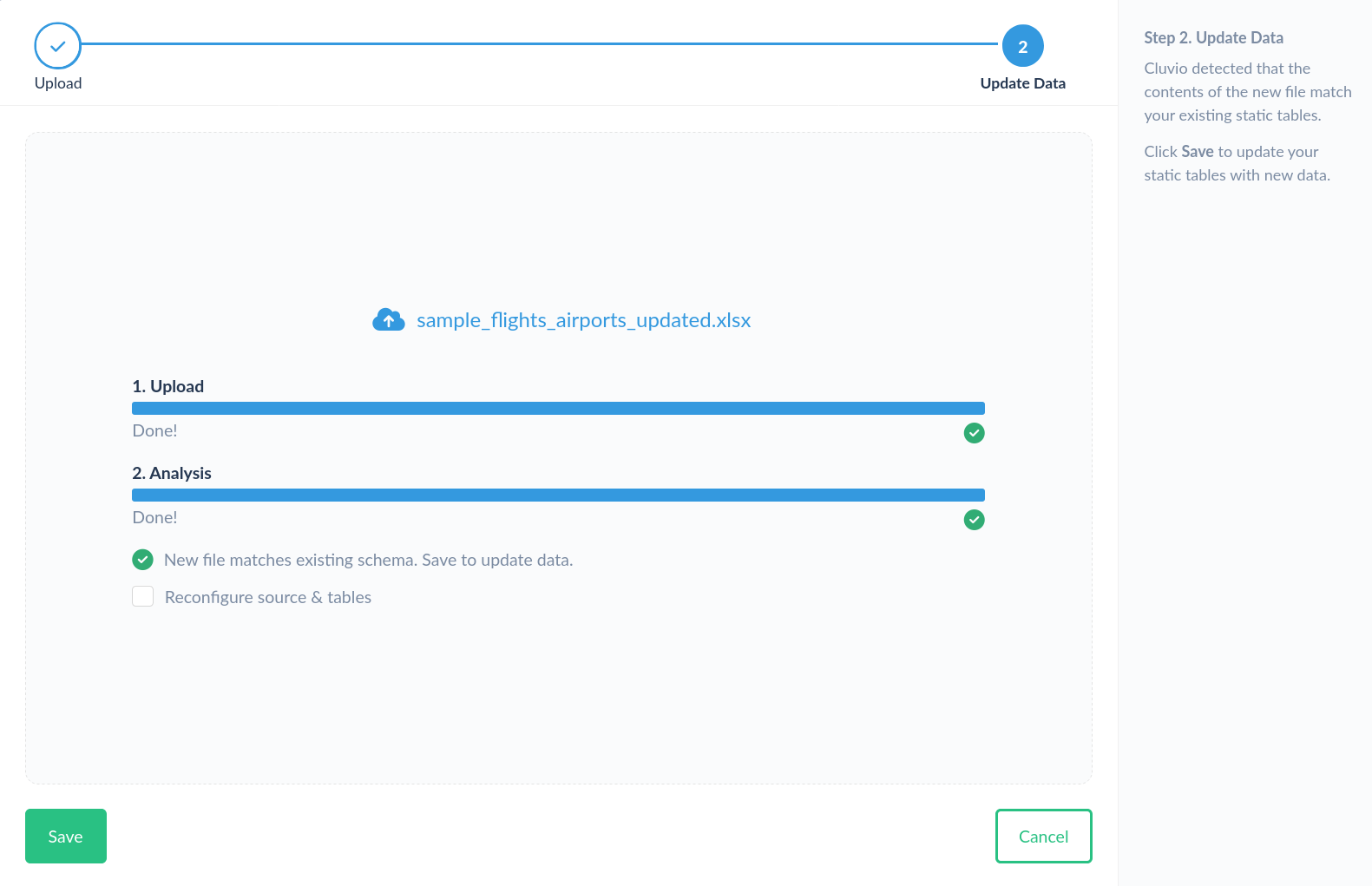
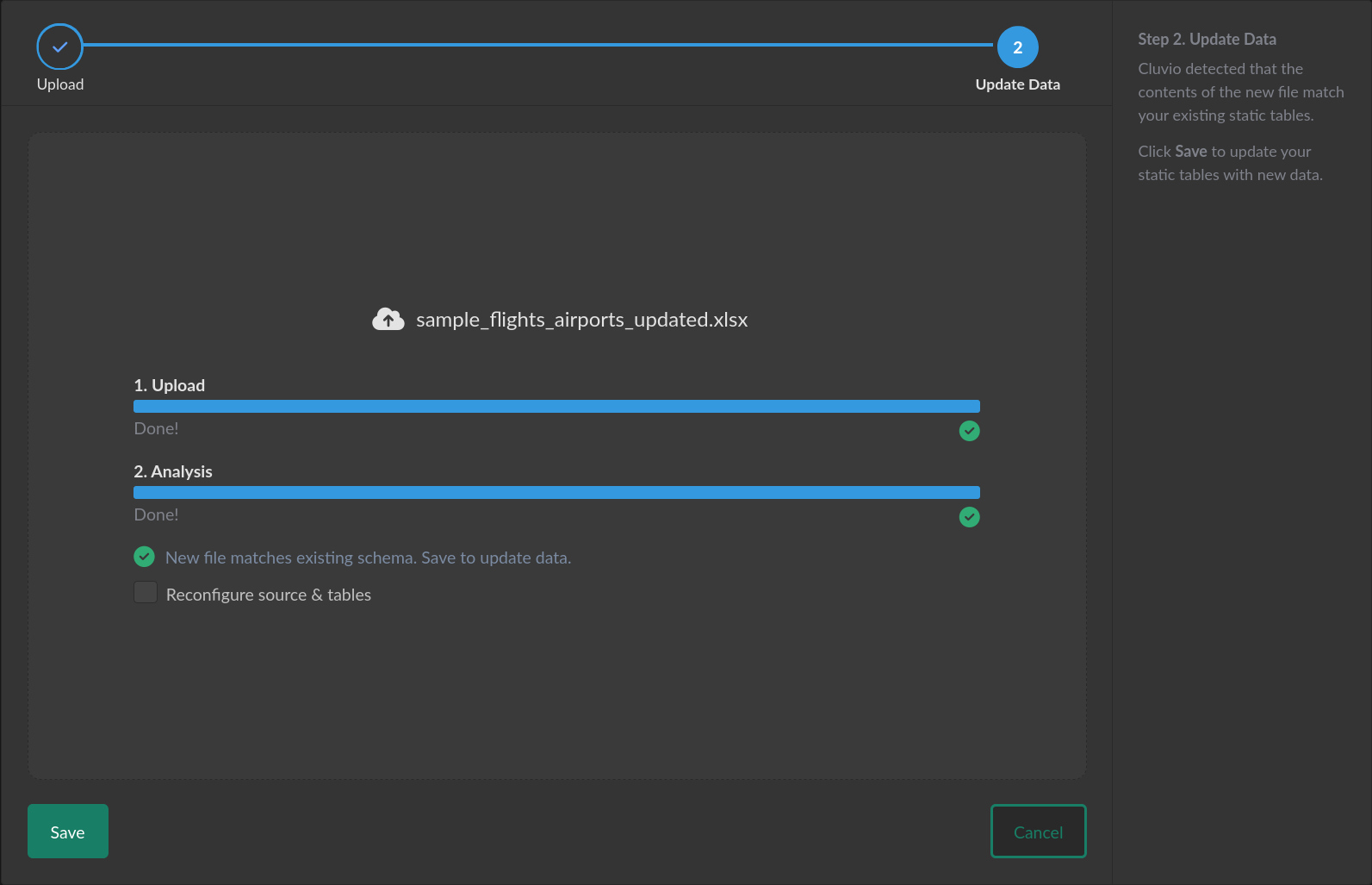
When Cluvio detects that your existing static tables match the schema of the new
file, you can click Save and Cluvio will process the new file to update your
static tables with the new data. You can optionally reconfigure source and
tables even though there are no schema changes by checking Reconfigure source & tables.
When Cluvio detects schema changes, like a new sheet or different columns on a sheet, you are guided to review the source and table configuration just as in the original upload.
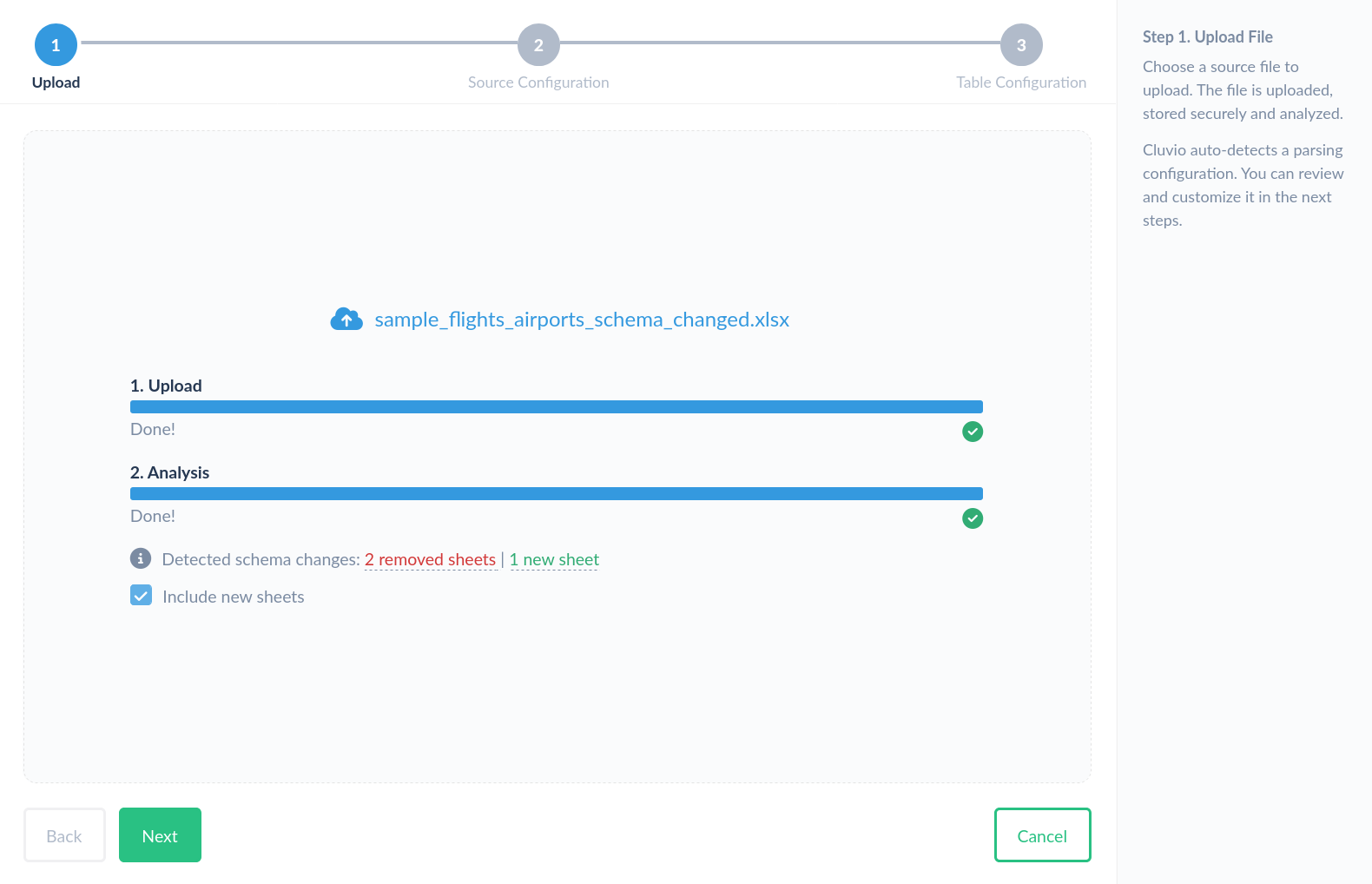
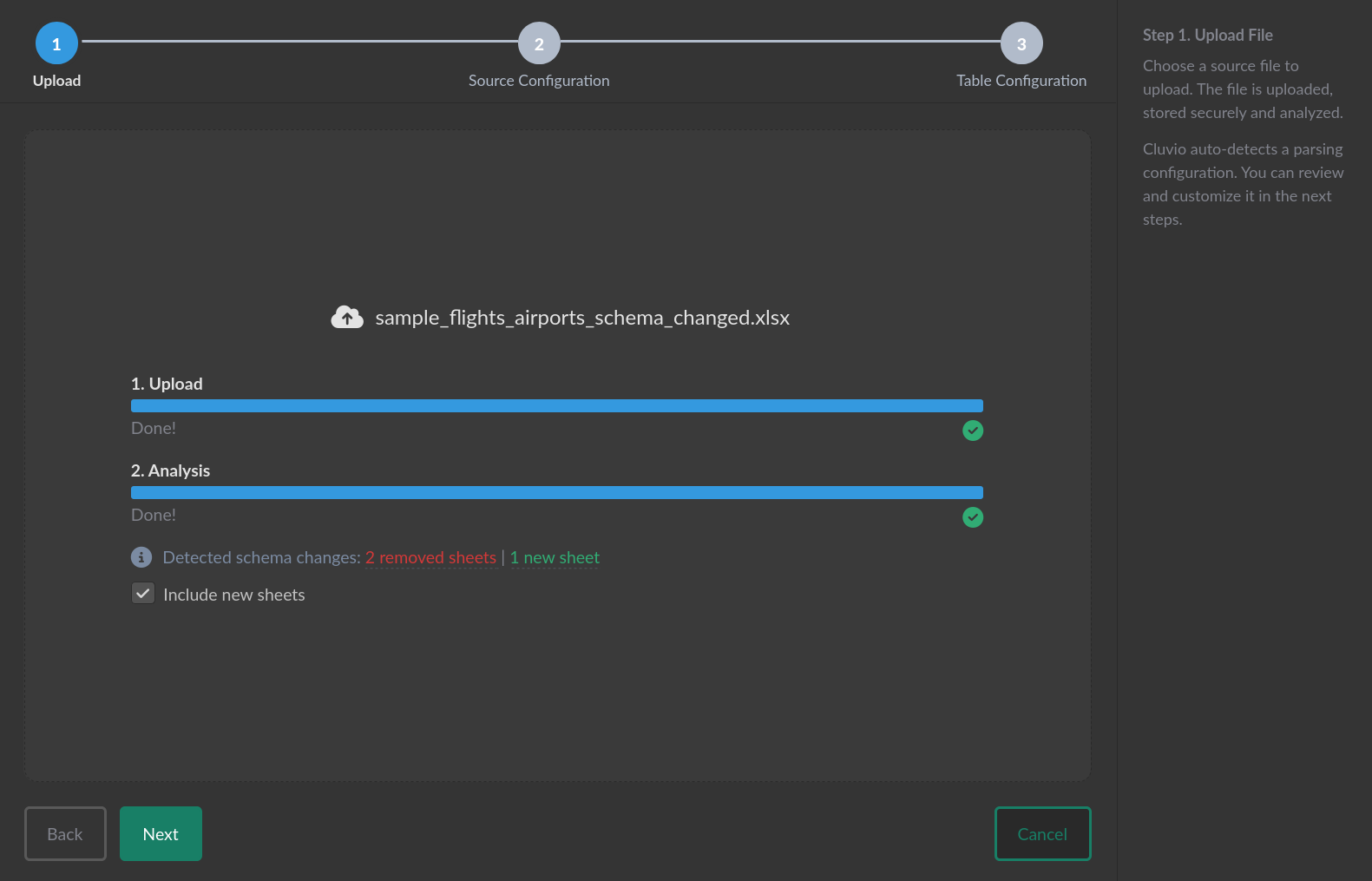
By default, new sheets are included (i.e. processed into new static tables) and new columns are added to existing tables. Proceed to the next step to review the changes.
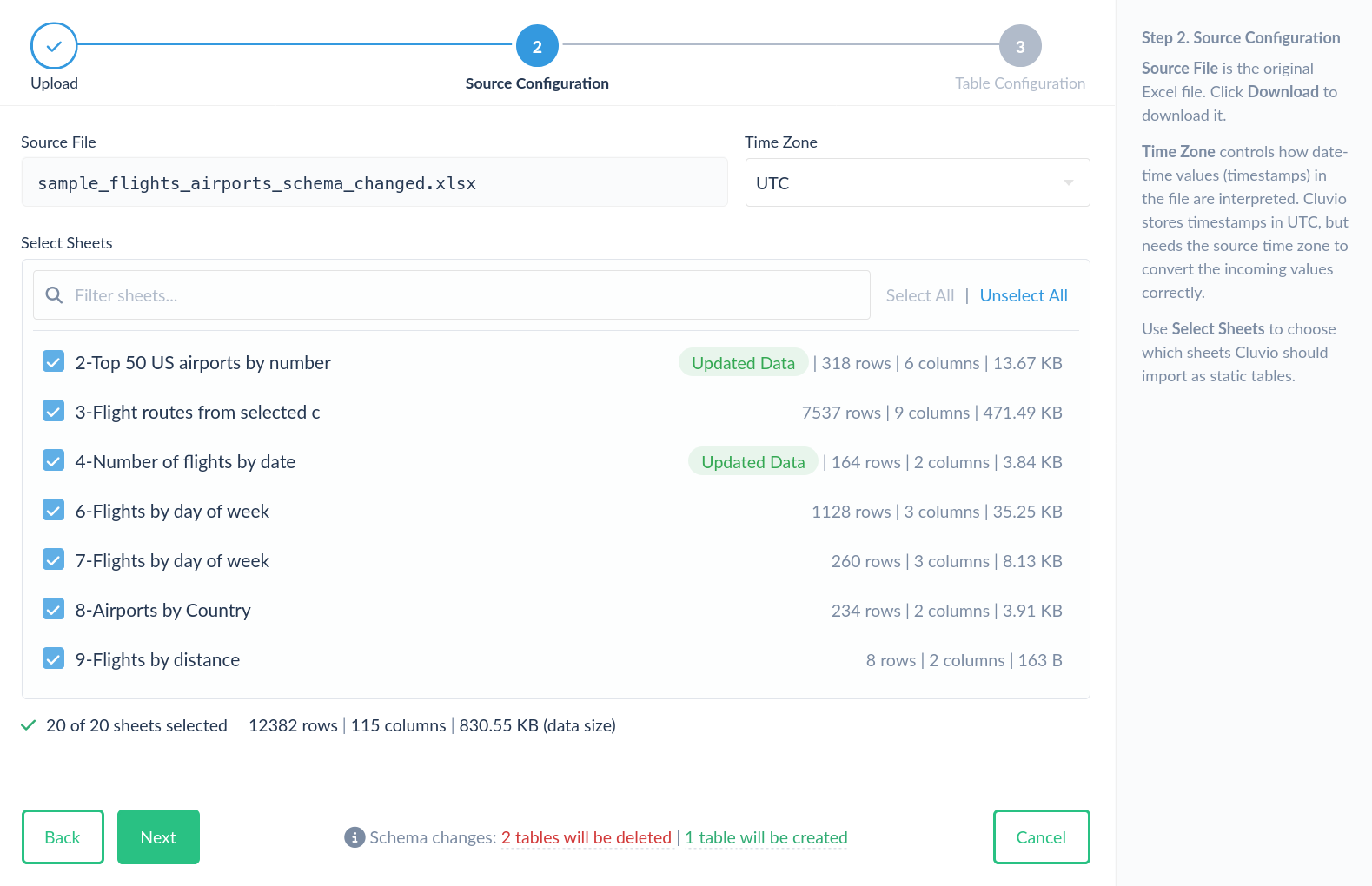
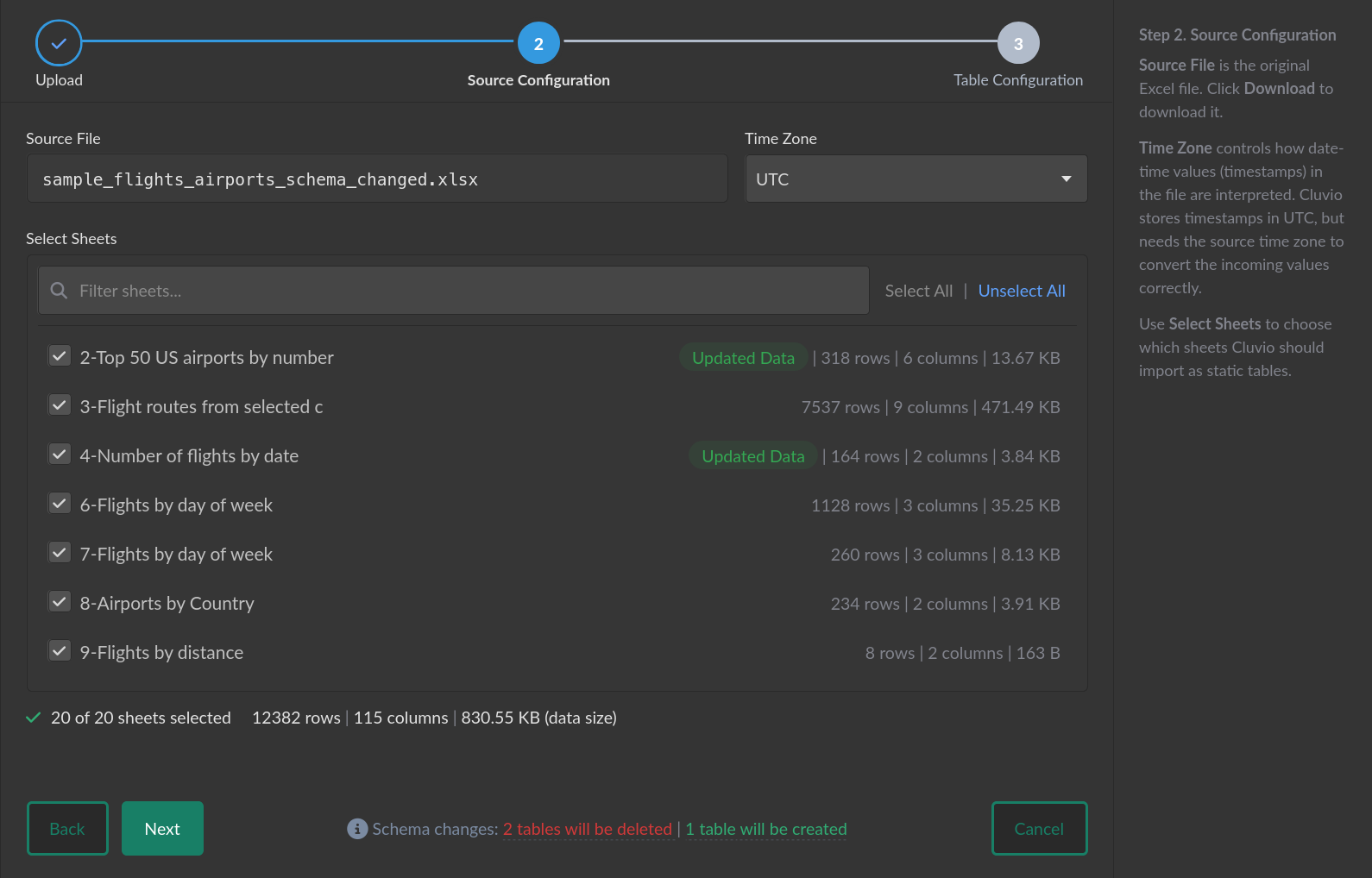
Upon saving, you are prompted to confirm a summary of the schema changes.
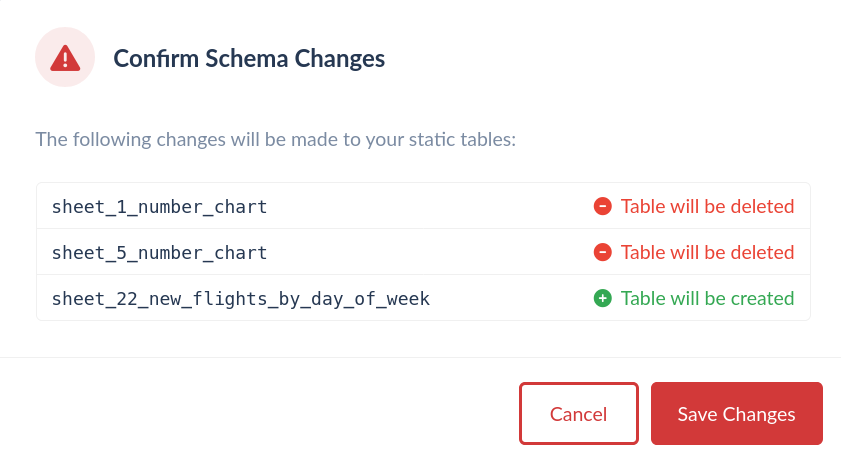
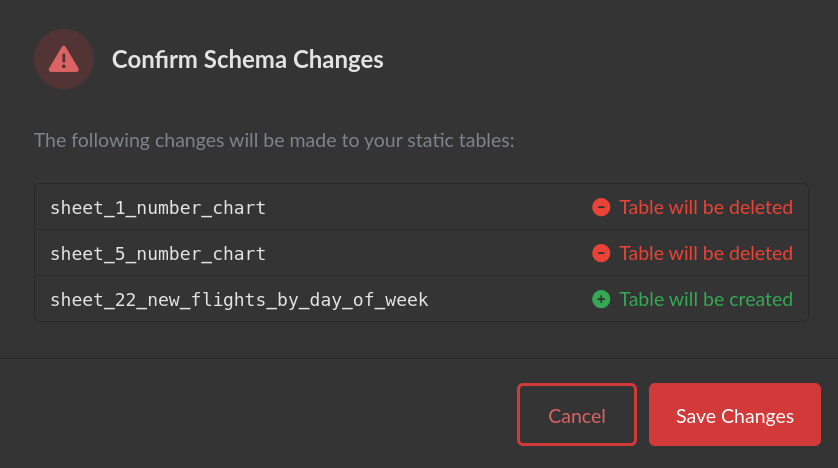
When saving schema changes that drop tables or columns, as well as when renaming columns or changing column types, existing SQL queries on reports, filters or alerts using these tables may start to fail.
Value Types and Formats
Cluvio supports the following value types for Excel data:
| Type | Description | Example Values | Formats & Limits |
|---|---|---|---|
| Boolean | True or false values | true, false | Case-insensitive |
| Integer | Whole numbers | 42, -1000, 0 | Signed 64-bit (-9,223,372,036,854,775,808 to 9,223,372,036,854,775,807) |
| Float | Decimal numbers | 3.14, -0.5, 1.23e10 | 64-bit floating-point (double precision) |
| String | Text values | Hello, Product A | UTF-8 encoded, max 1 MB (1,048,576 bytes) per value |
| Date | Calendar dates | 2025-12-1412/24/202524.12.2025 | Pre-defined: ISO 8601, US, EU Custom: See Date-Time Formats |
| Time | Time of day | 15:10:3012:00 AM | Pre-defined: ISO 8601 Custom: See Date-Time Formats |
| DateTime | Date and time combined | 2025-12-14T14:15:302025-12-14 14:15:30 | Pre-defined: ISO 8601, UNIX timestamp Custom: See Date-Time Formats |
Note: When parsing Excel files, the value format of a Date, Time or
DateTime column is a fallback format used only when a cell contains a String
value rather than a native Excel date/time value.
Custom Date and Time Fallback Formats
For Date, Time, and DateTime columns, you can define custom fallback formats using format specifiers:
Date specifiers: YYYY, MMMM, MMM, MM, M, DD, D
Time specifiers: HH, H, hh, h, mm, ss, A, a
Allowed separators: whitespace, ,, -, :, ., /, T, |
See the Date-Time Formats guide for complete details on custom formats.