Sharing with Organization Users
A dashboard shared with users in your organization appears on their dashboards overview page, with live data, the next time they sign in. Sharing with users is available on the Pro and Business plans.
Admins and Analysts manage it on the dashboard's card in Settings → Dashboards & Sharing Links. Manage Sharing in the dashboard's actions menu opens it directly, as does the same item in the dashboard's row of that settings table.
Pro plan
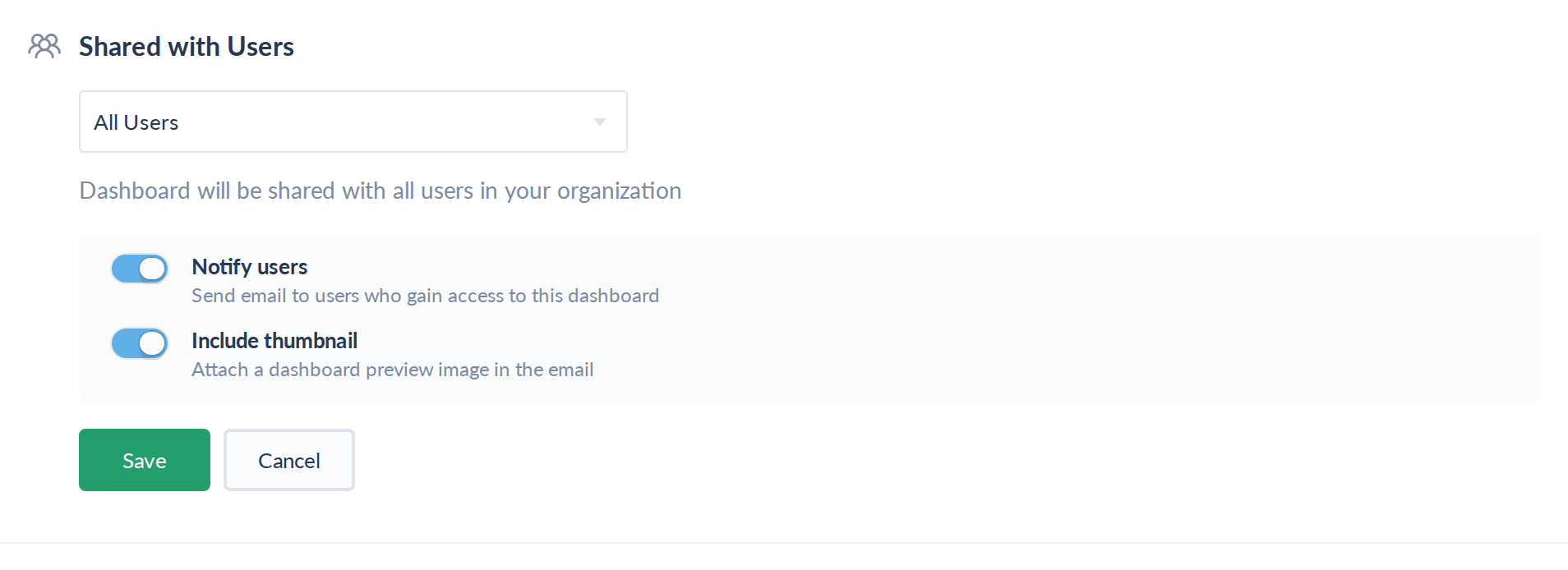
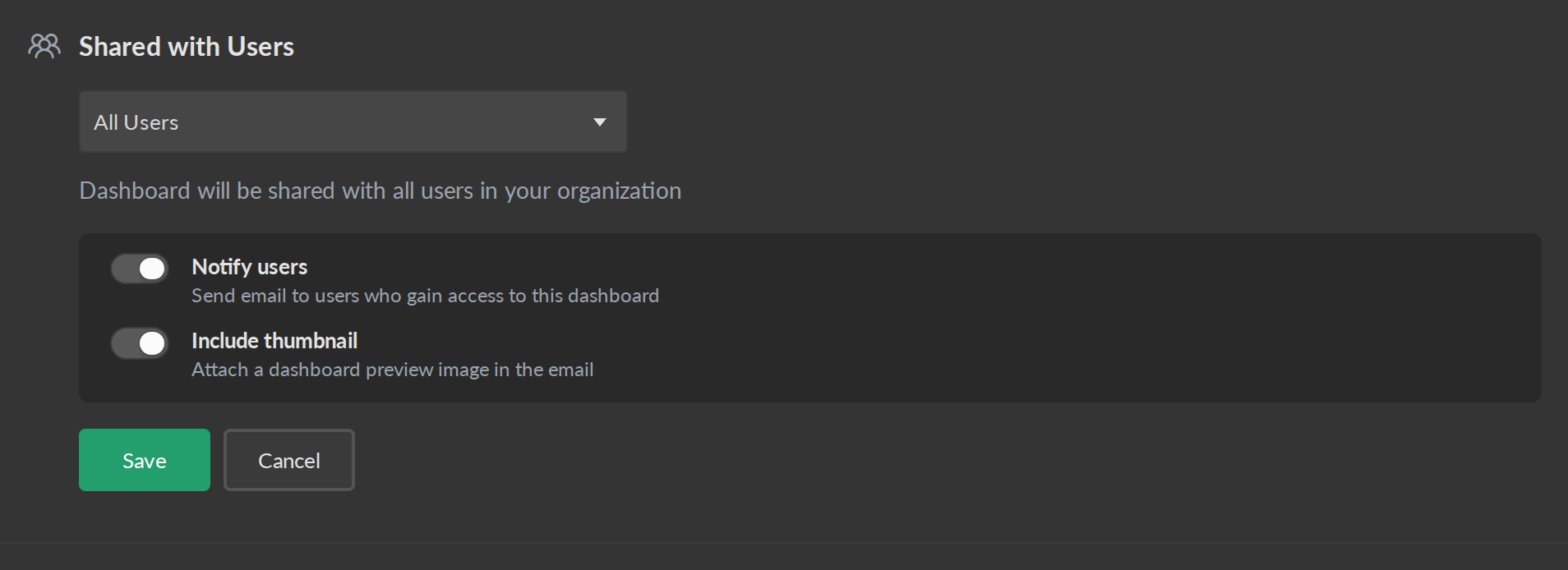
On Pro, a dashboard is Not shared, shared with All Users, or shared with All Analysts, which is every Admin and Analyst. Choose one, check the description below the selector, and Save.
Business plan
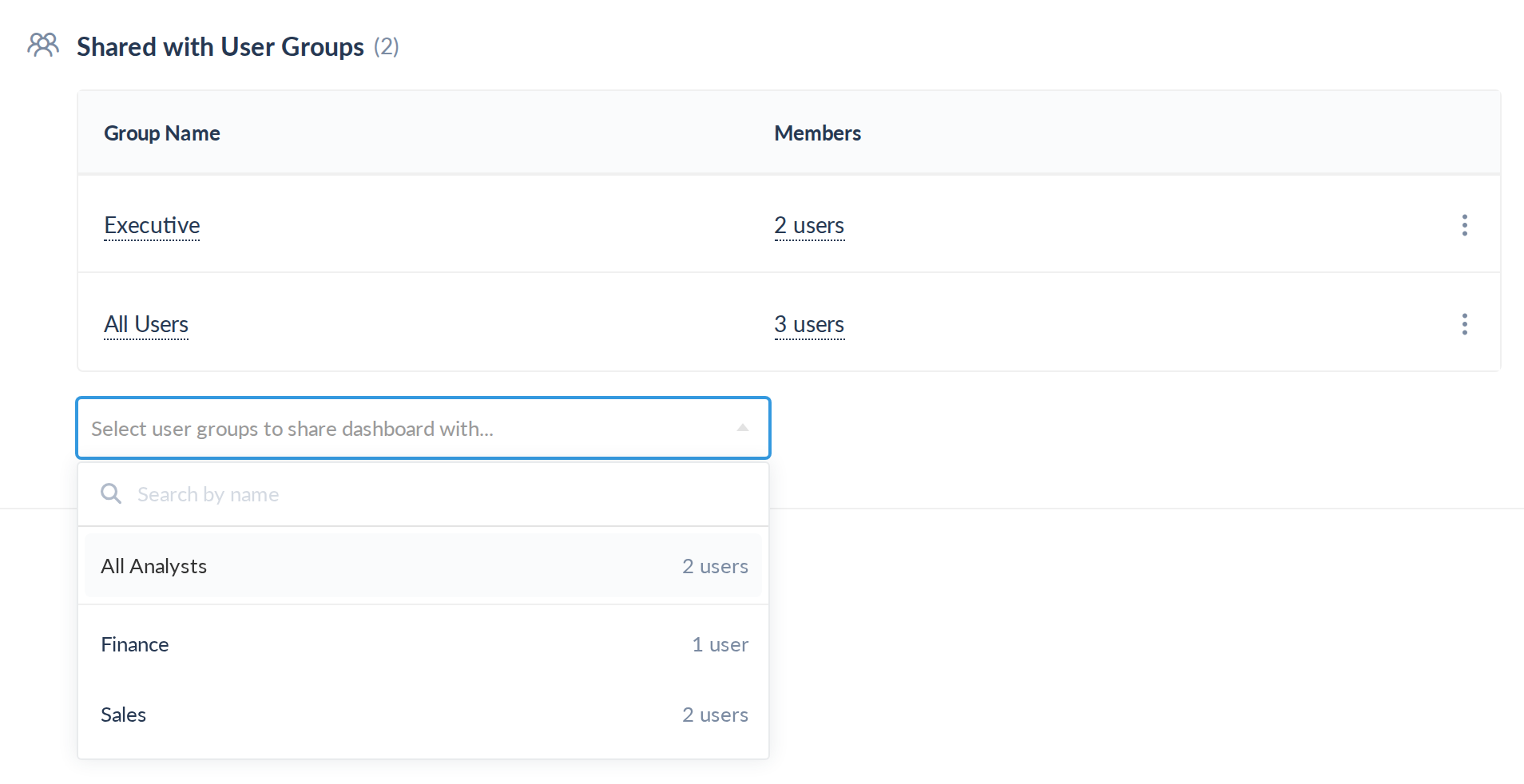
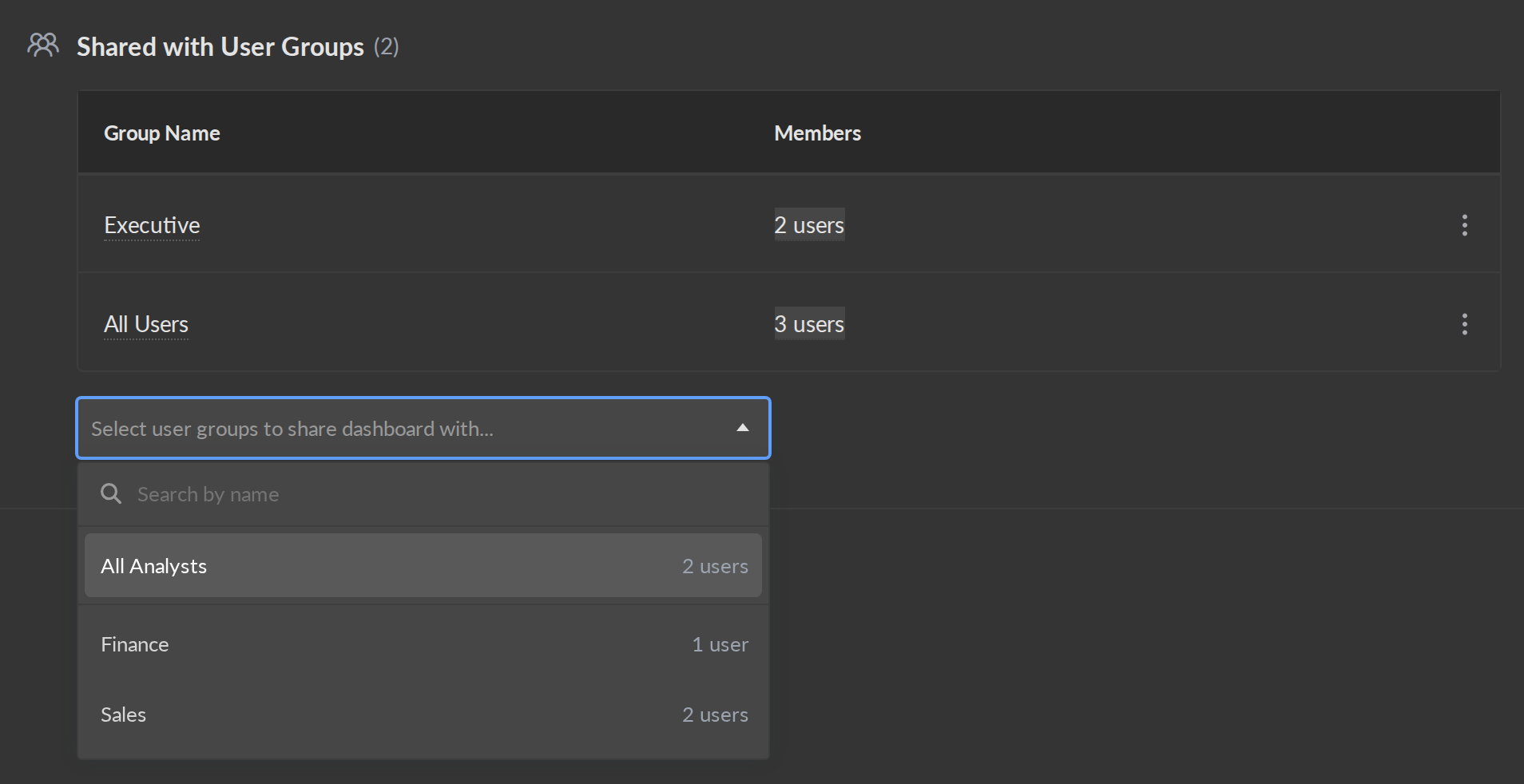
On Business, a dashboard can be shared with any combination of user groups: the built-in All Users and All Analysts groups as well as your own. The card lists the groups the dashboard is shared with and how many members each has, and everyone in any of them can see it.
Groups chosen from the selector below the table wait in a pending list until you Save them together. To stop sharing with a group, use Remove Sharing… in its row's menu.
Notifying people
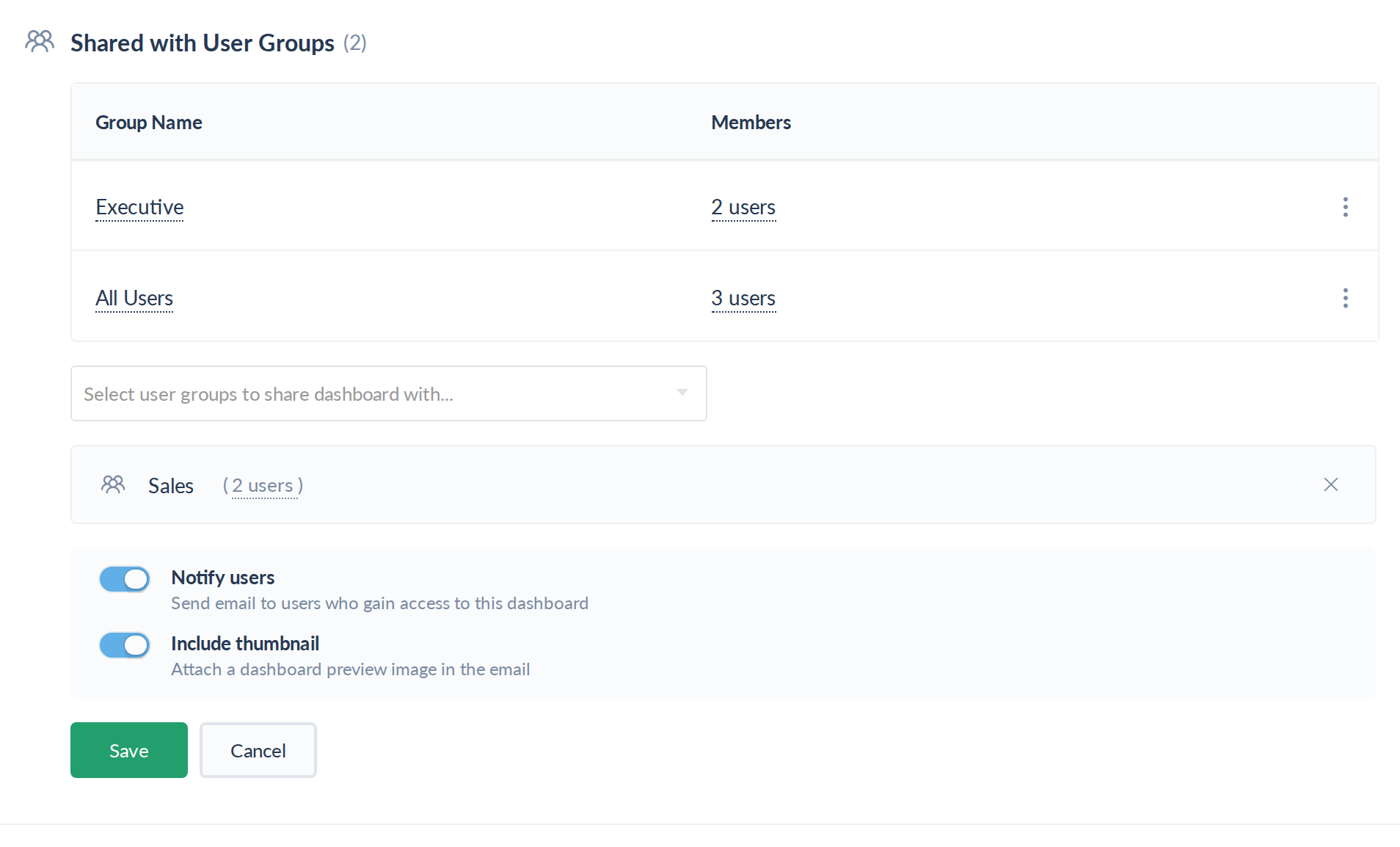
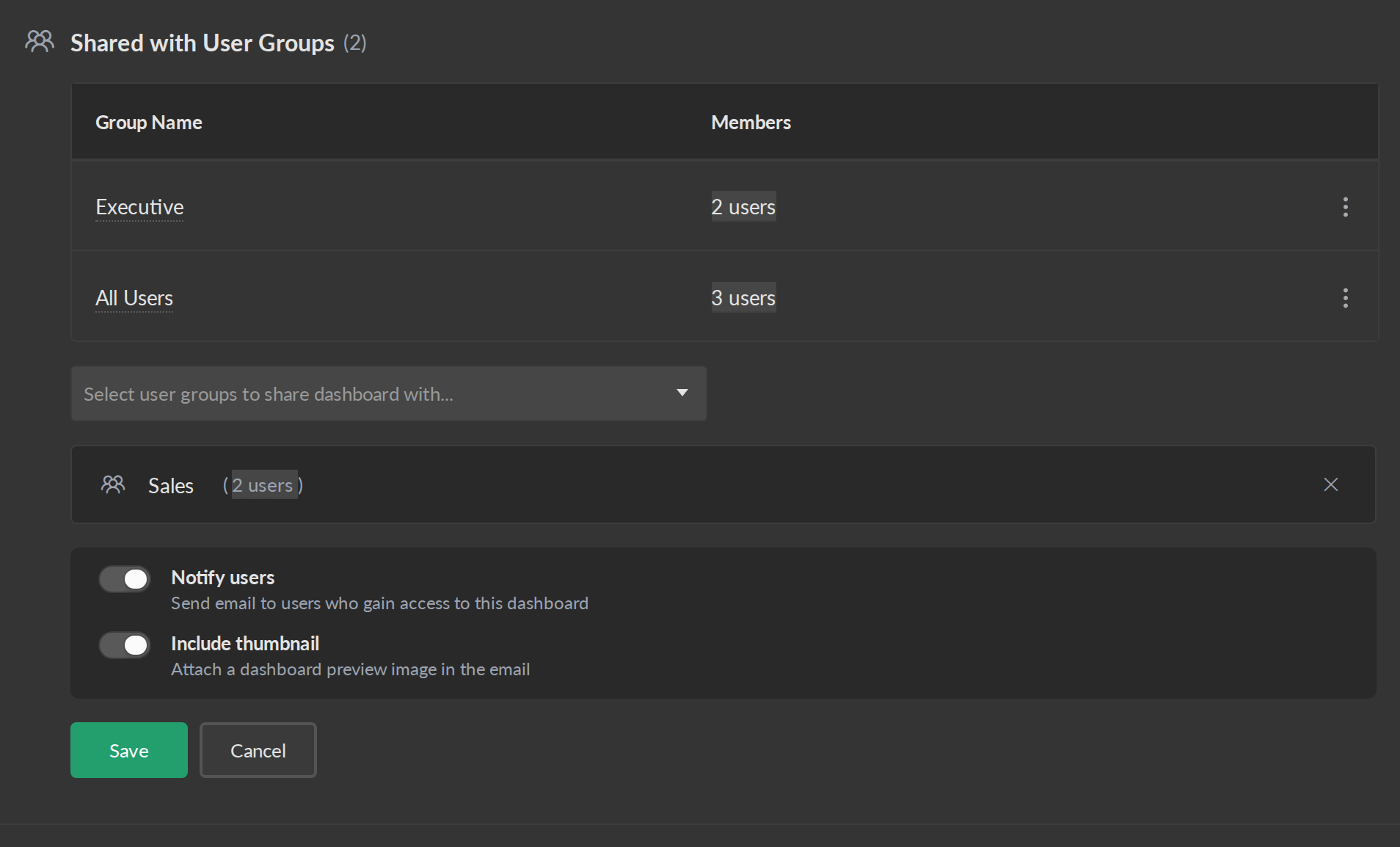
When a change gives people access, Notify users e-mails them about the dashboard, and Include thumbnail adds a preview image to that e-mail. Only the people who gain access through the change are e-mailed; anyone who could already see the dashboard is not. Include thumbnail is not offered when the dashboard's thumbnail is turned off in its settings.
Drafts and stopping sharing
A dashboard that isn't shared with anyone is a draft. A new dashboard starts as a draft owned by whoever created it. A draft appears only on its owner's dashboards overview, marked Draft; Admins find every draft in Settings → Dashboards & Sharing Links.
Stopping sharing turns a dashboard back into a draft: Not shared on Pro, or removing its last group on Business. When an Admin does this, a Stop Sharing dialog asks who should own the draft, with its current owner already selected. An Analyst who stops sharing a dashboard someone else owns becomes its owner.
Changing a draft's owner
Admins can hand a draft to another Analyst or Admin at any time, for example when its owner leaves or a colleague takes over the work. In Settings → Dashboards & Sharing Links, open the draft's row menu and choose Change Owner…. The same action is next to the owner on the draft's dashboard card.
Choose the new owner and click Change Owner. Only active Analysts and Admins are offered: Viewers can't own a draft, and nor can users who haven't accepted their invitation yet. The draft then appears on the new owner's dashboards overview instead of the old one's.
Change Owner… is offered for drafts only, and only to Admins.
See also
- Sharing Links — share a dashboard with people who don't have a Cluvio account, or embed it in your own product.
- Scheduled E-Mails — deliver dashboard snapshots to recipients on a schedule.
- User Groups — manage who's in each group.