Hierarchy Chart
The Hierarchy Chart visualizes hierarchical data structures using four layout options. This chart type helps you analyze nested relationships in your data through interactive drill-down capabilities and flexible visual representations.
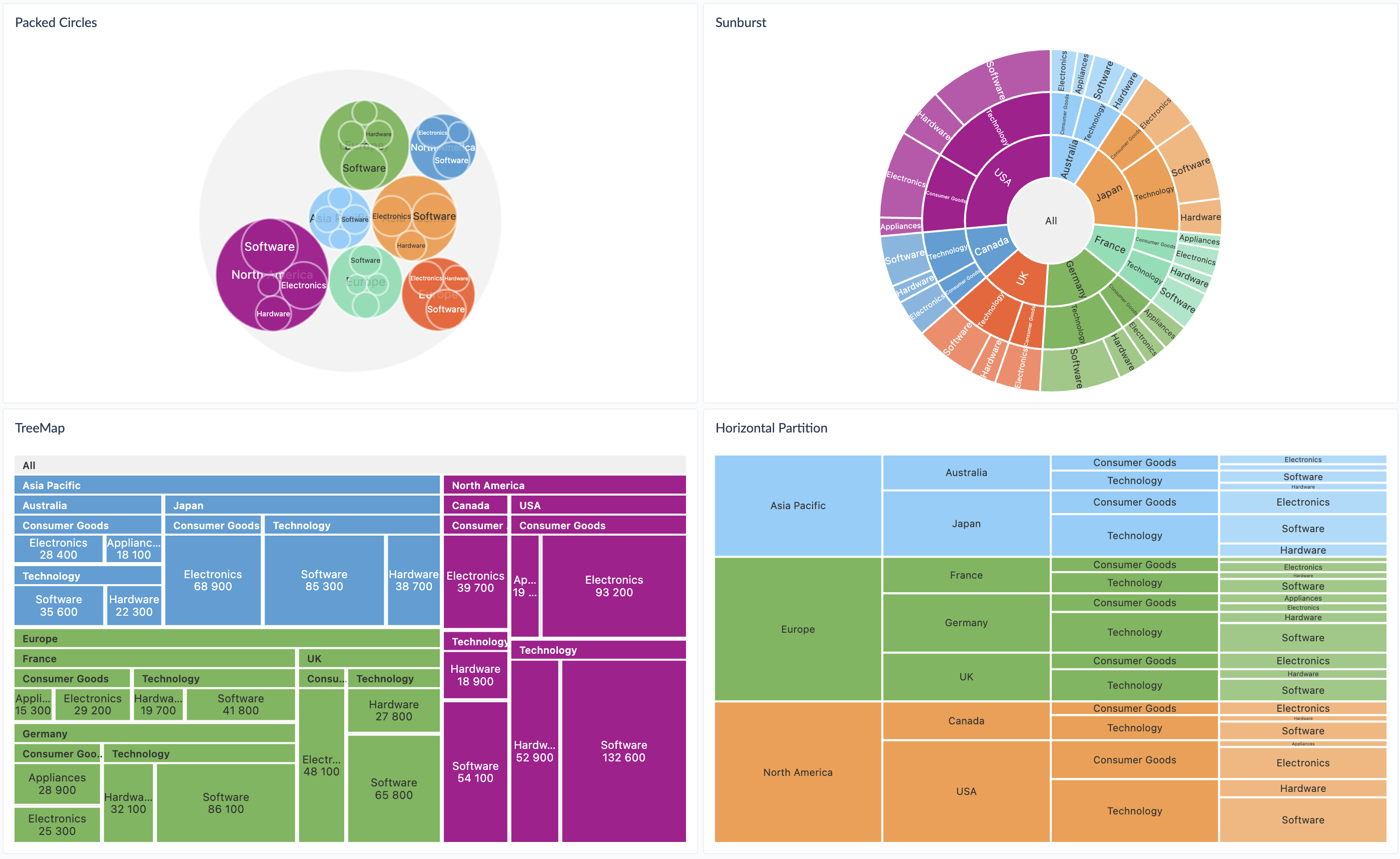
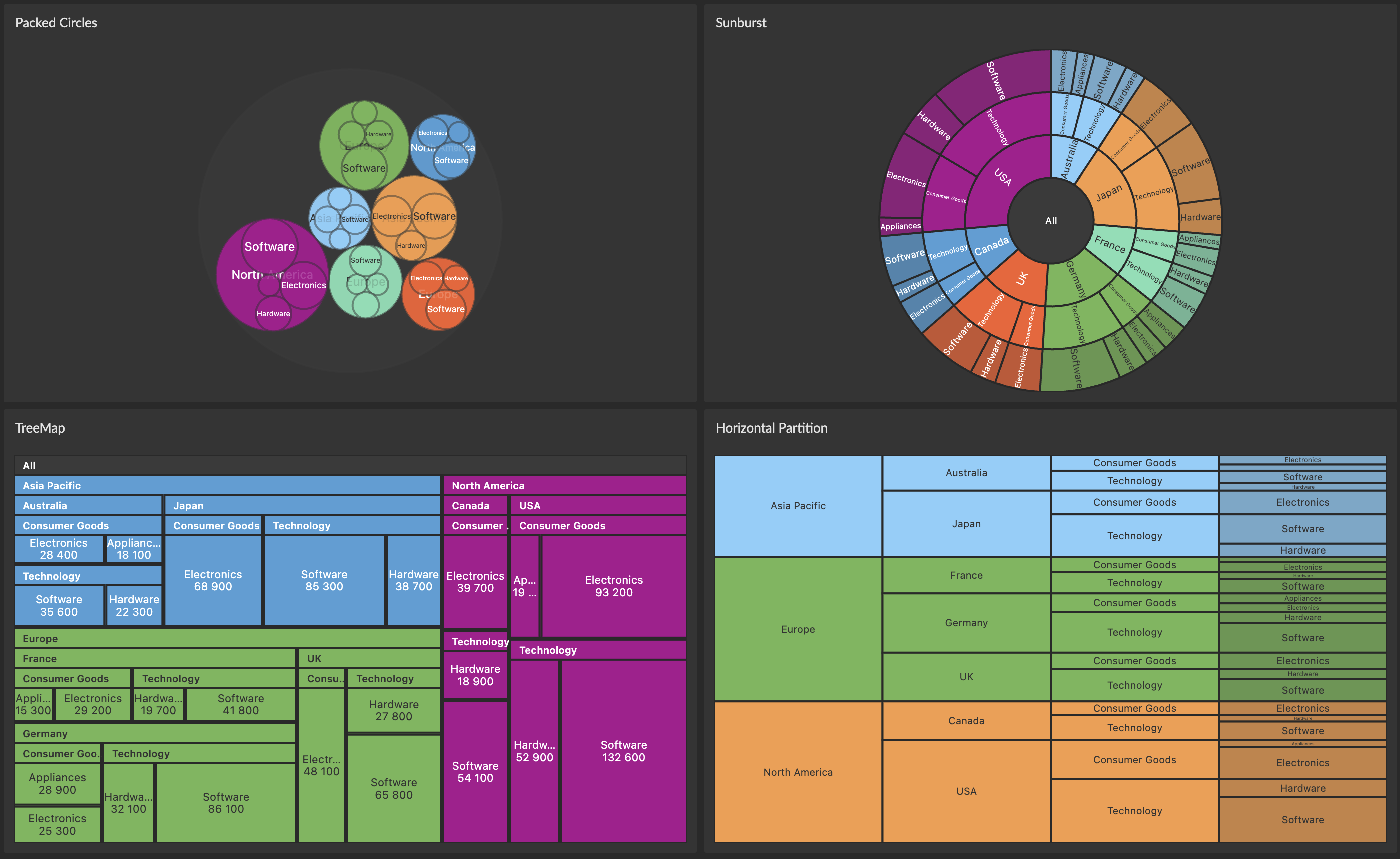
The Hierarchy Chart supports multiple visualization types, multi-level hierarchies, interactive drill-down, flexible coloring strategies, and customizable layouts.
Chart Types
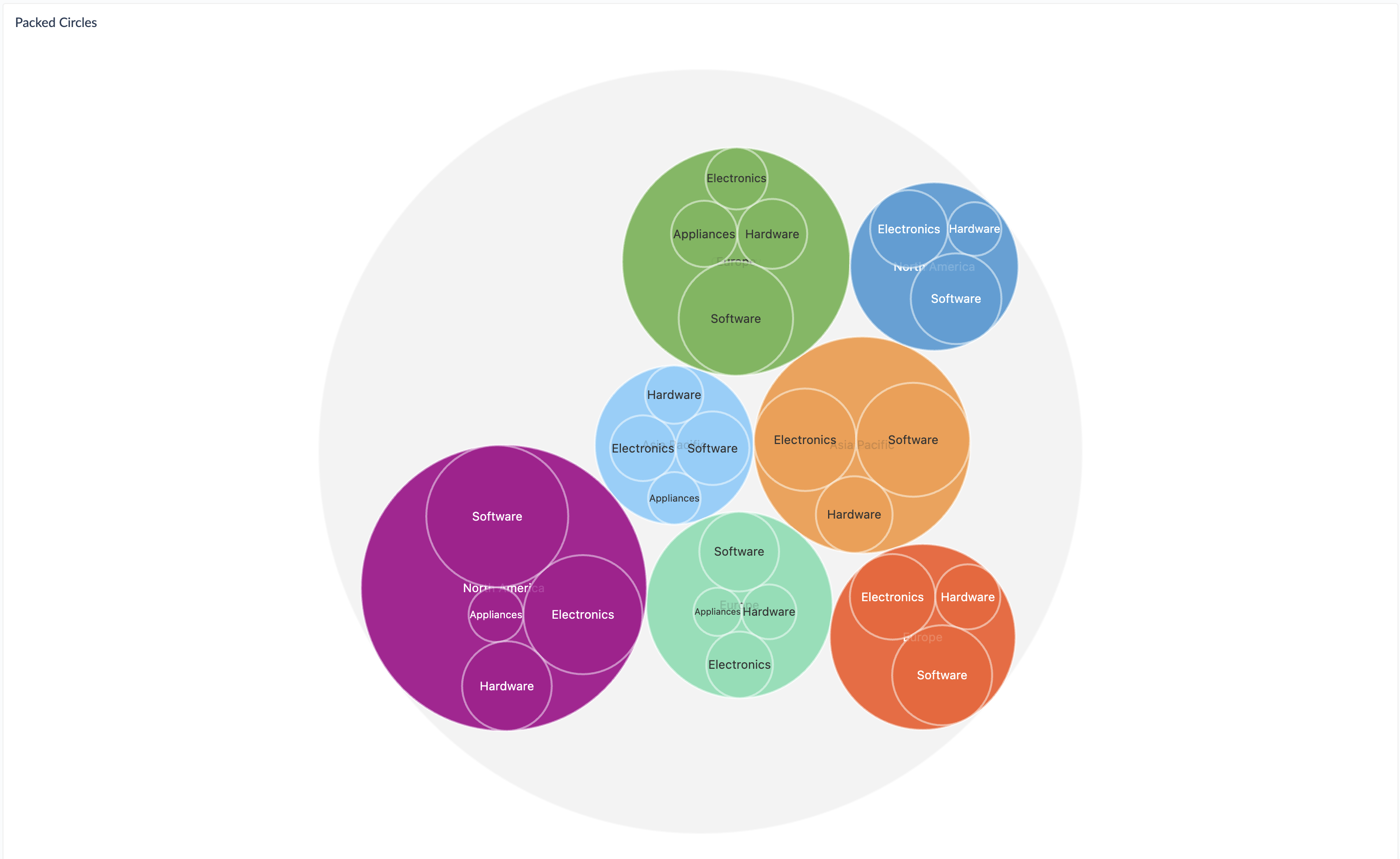
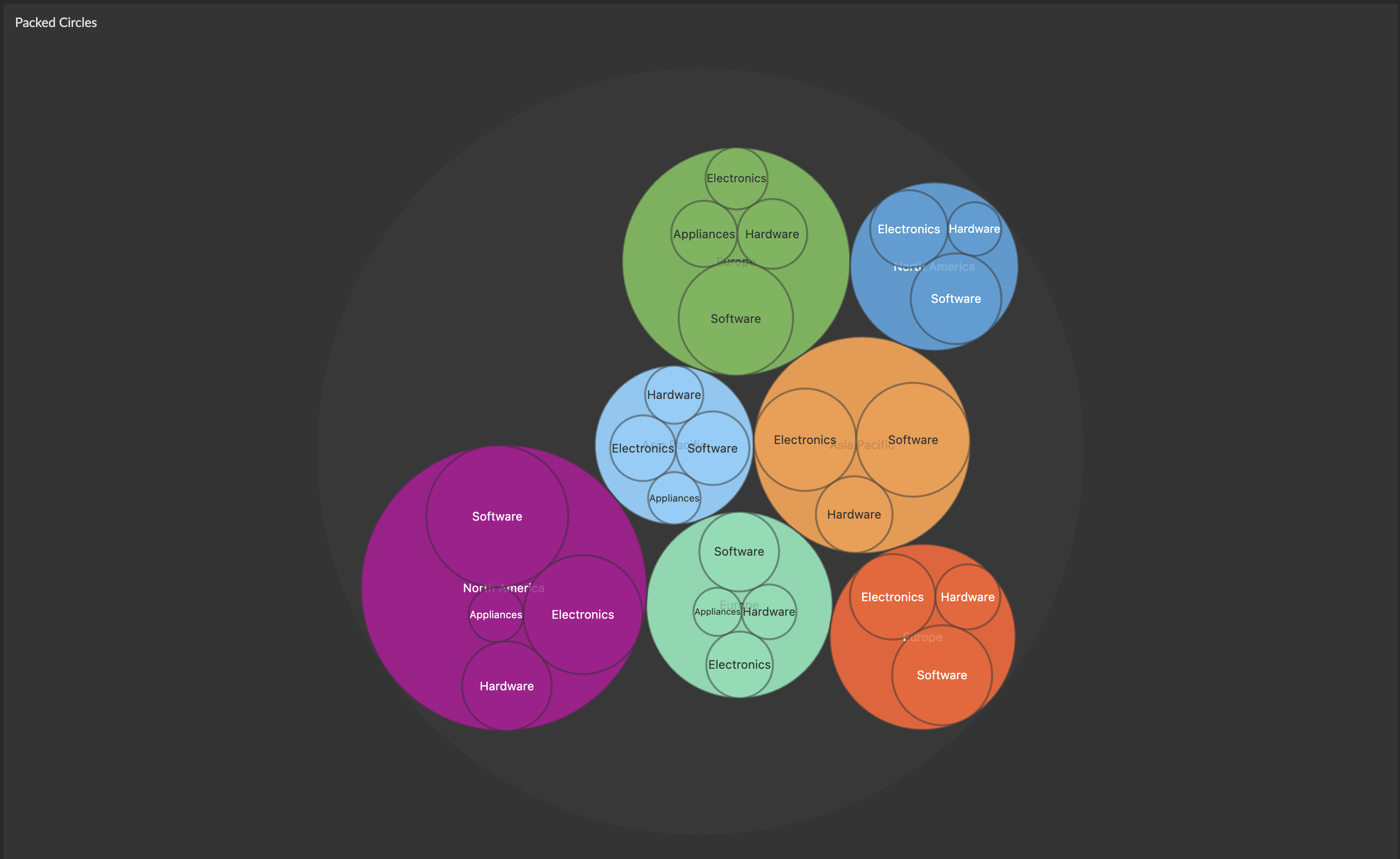
Packed Circles
Nested circles where size represents values and nesting shows hierarchy.
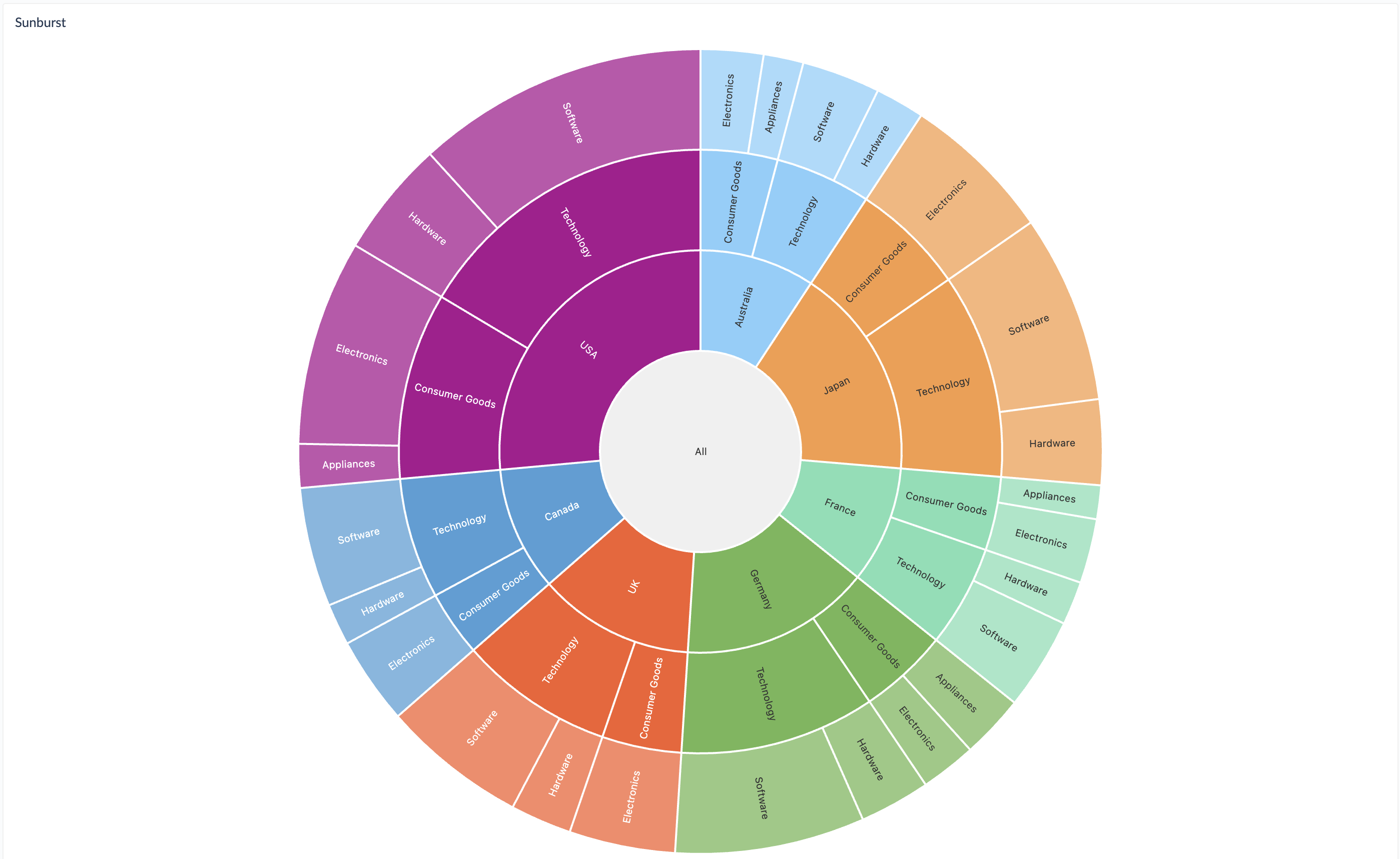
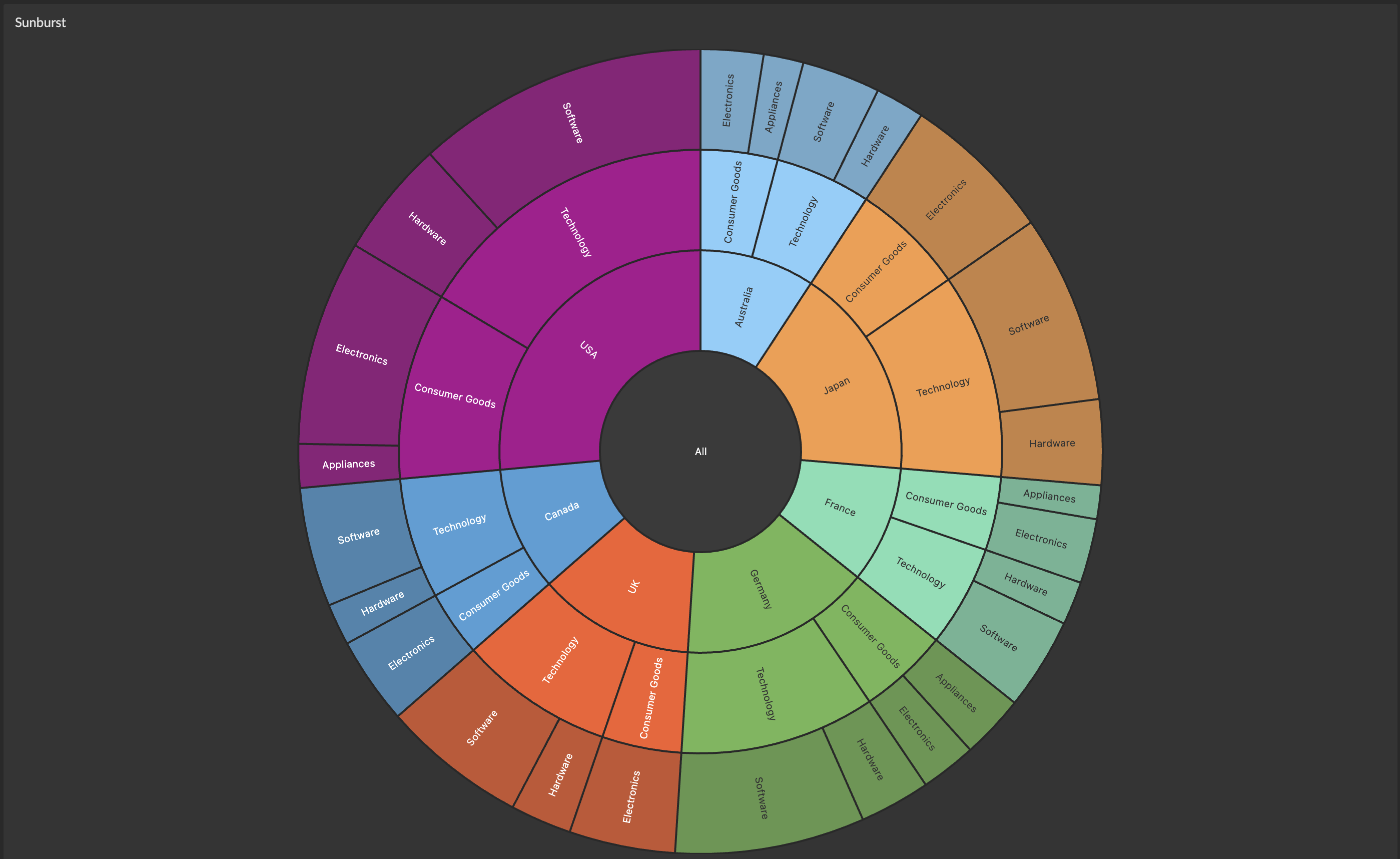
Sunburst
Radial layout with concentric rings representing hierarchy levels.
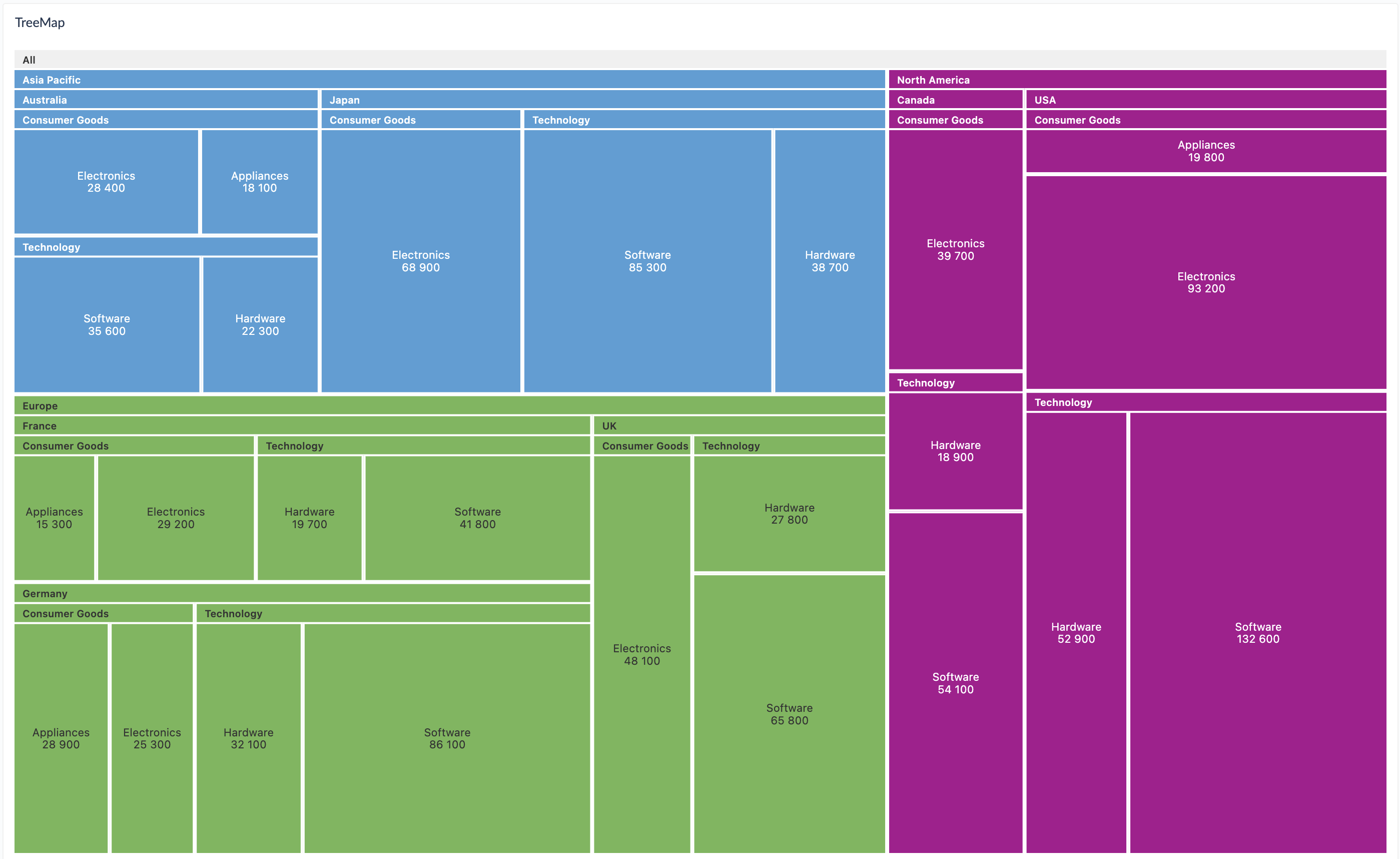
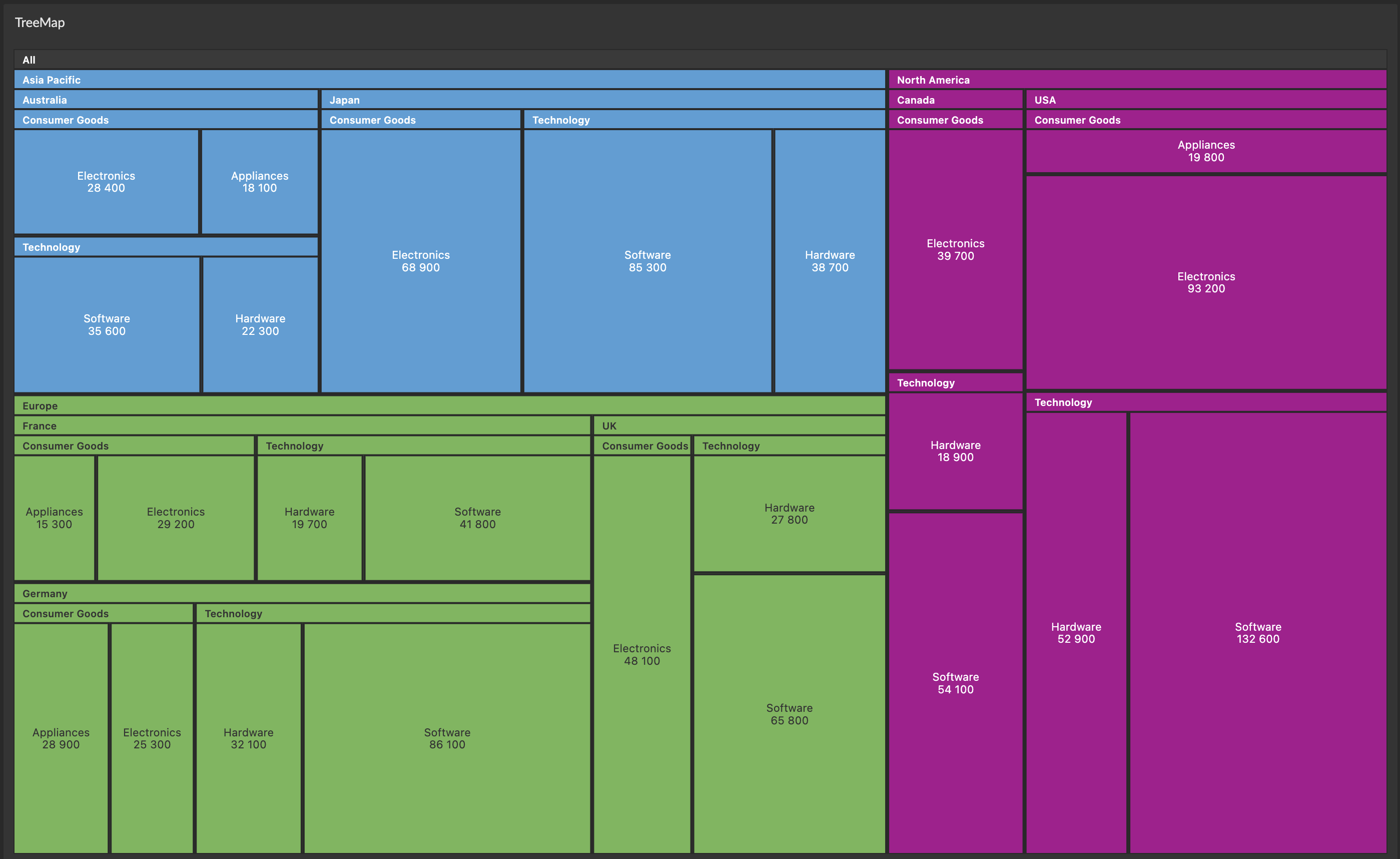
Treemap
Rectangular tiles where area represents values and nesting shows hierarchy.
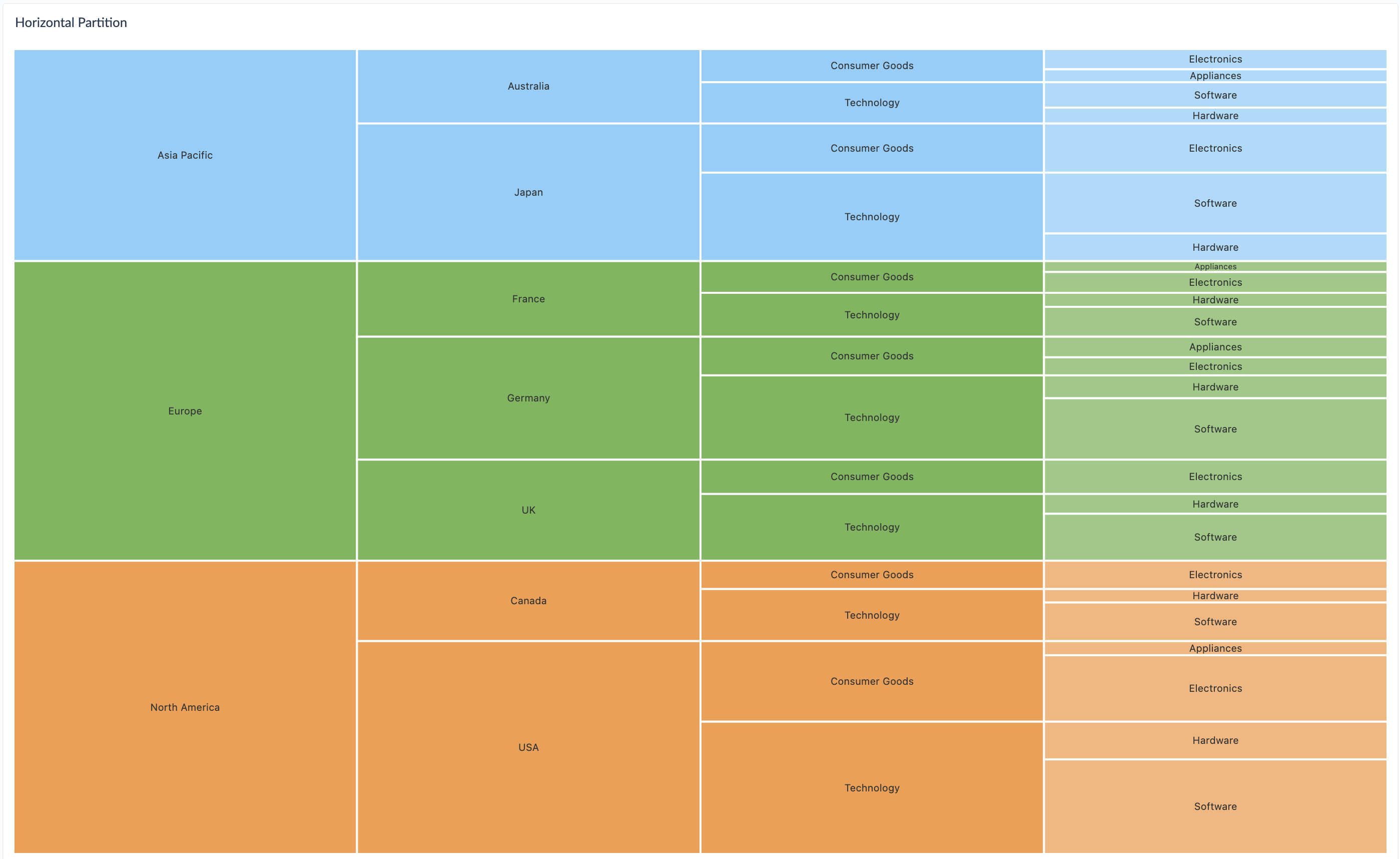
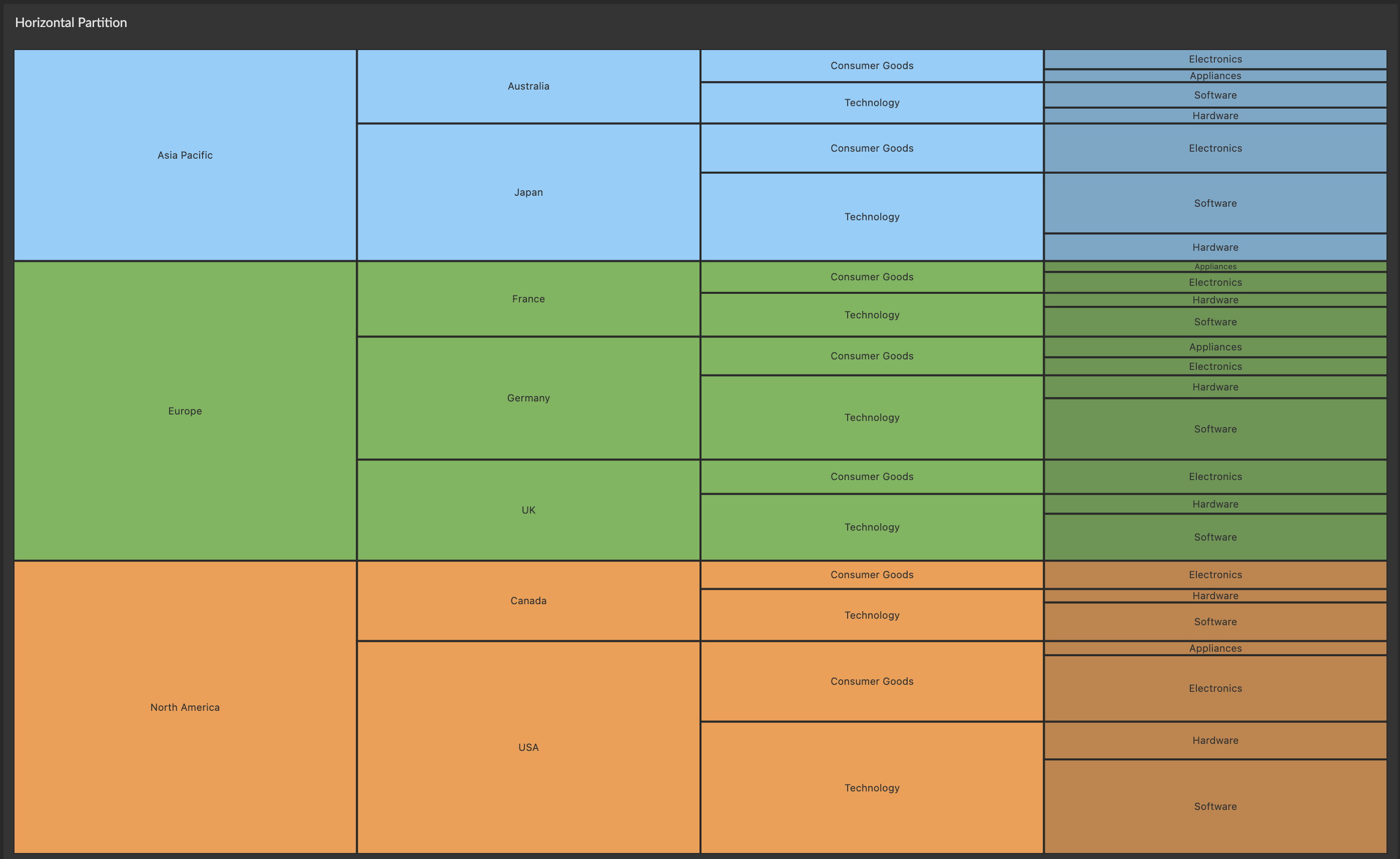
Partition
Linear partitioning that can be oriented horizontally or vertically.
Data Requirements
Available for query results with at least 2 columns. Requires:
- At least 1 column for Hierarchy: For hierarchical grouping (typically from
GROUP BYclauses) - 1 column for Values: Numerical data for sizing elements (often aggregated with SQL functions)
Supports any combination of text, numerical, and date column types, and works with both aggregated and non-aggregated data.
Typical SQL Pattern
SELECT
  category,              -- First hierarchy level
  subcategory,          -- Second hierarchy level (optional)
  region,               -- Third hierarchy level (optional)
  SUM(sales_amount),    -- Value for sizing
  COUNT(*) as count     -- Additional metrics (optional)
FROM sales_data
GROUP BY category, subcategory, region
ORDER BY category, subcategory, region
Interactive Features
- Drill-Down Navigation: Click elements to zoom into that level of the hierarchy
- Auto-Drill: Automatically drills into root level for Packed Circles and Treemap
- Breadcrumb Navigation: Track your current position in the hierarchy
- Hover Effects: Visual feedback on interactive elements
- Zoom Controls: Navigate back up the hierarchy
- Responsive Layout: Adapts to different screen sizes
- Tooltip Information: Rich context on hover showing full hierarchical path
- Interactive Legend: Filter and highlight categories with hover and click (available when using Category color strategy)
Configuration
General Settings


- Chart Type: Choose between Packed Circles, Sunburst, Treemap, or Partition
- Interactive: Enable/disable click-to-drill functionality
- Orientation: For Partition charts, select horizontal or vertical layout
- TreeMap Layout: For Treemap charts, choose layout algorithm (Squarify, Binary, Slice, Dice, Slice Dice)
Series Configuration
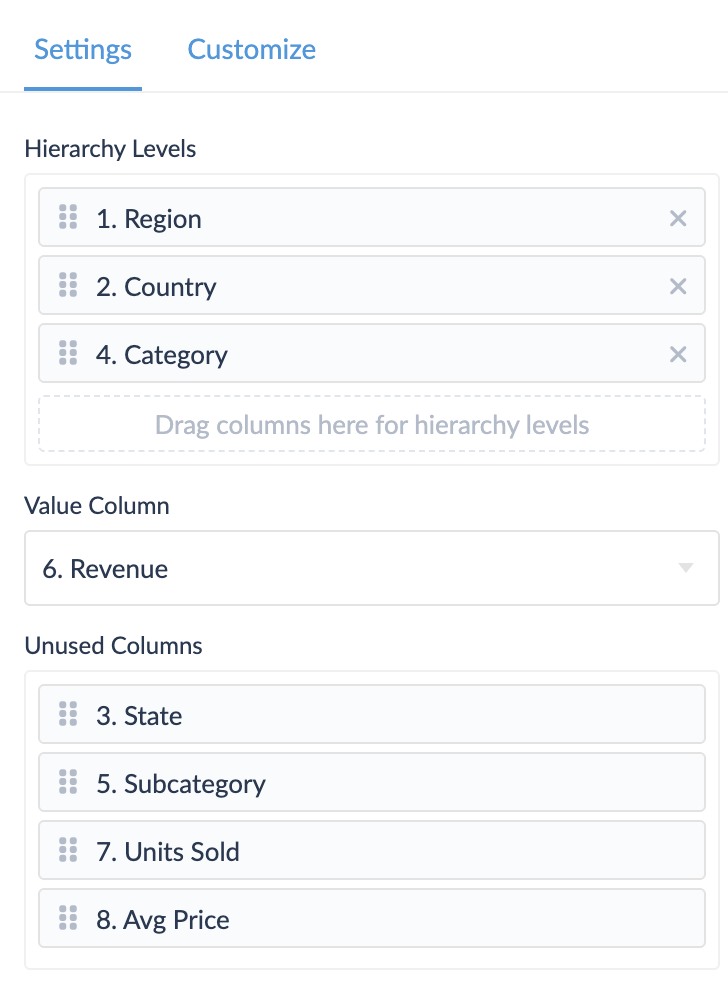
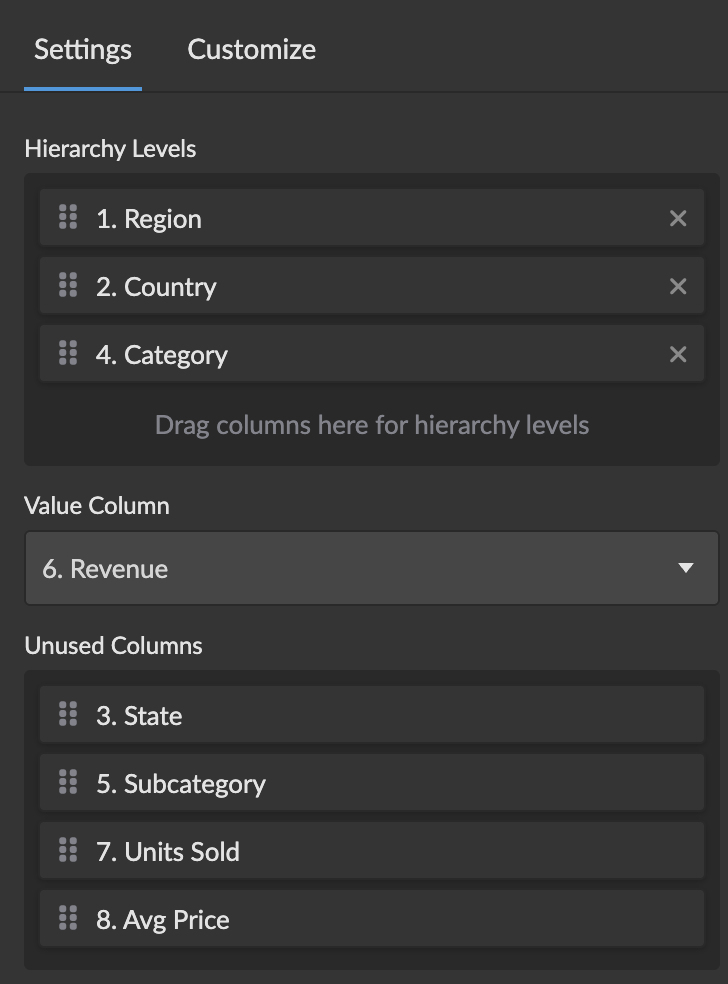
The chart uses two types of series:
- Hierarchy Series: Columns that define the hierarchical structure (multiple levels supported)
- Value Series: Column that provides the numerical values for sizing elements
Hierarchy Series
Configure multiple levels of hierarchy by adding columns in order from top-level (broadest) to bottom-level (most specific).
Options:
- Custom Name: Override column name for display
- Order: Drag to reorder hierarchy levels
- Remove: Remove hierarchy levels as needed
Value Series
Configure the metric used for sizing elements in the visualization.
Options:
- Custom Name: Override column name for display
- Data Field: Select which numerical column to use for sizing
Color Configuration
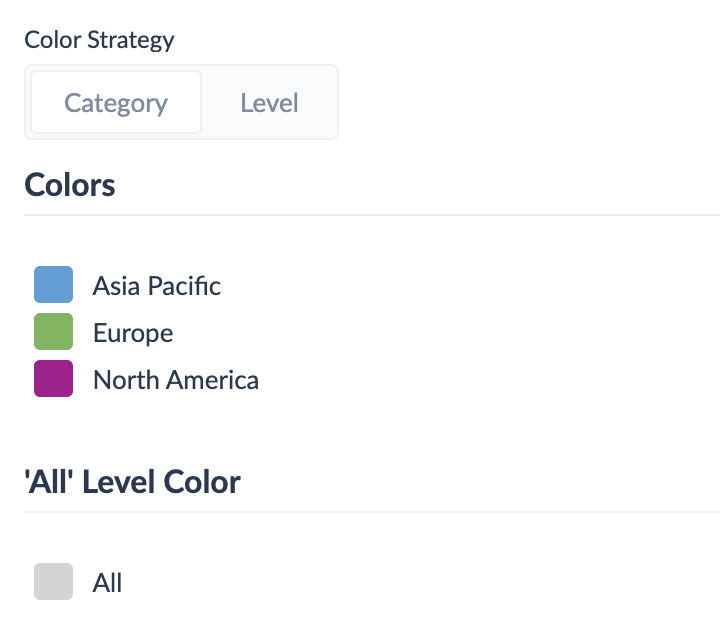
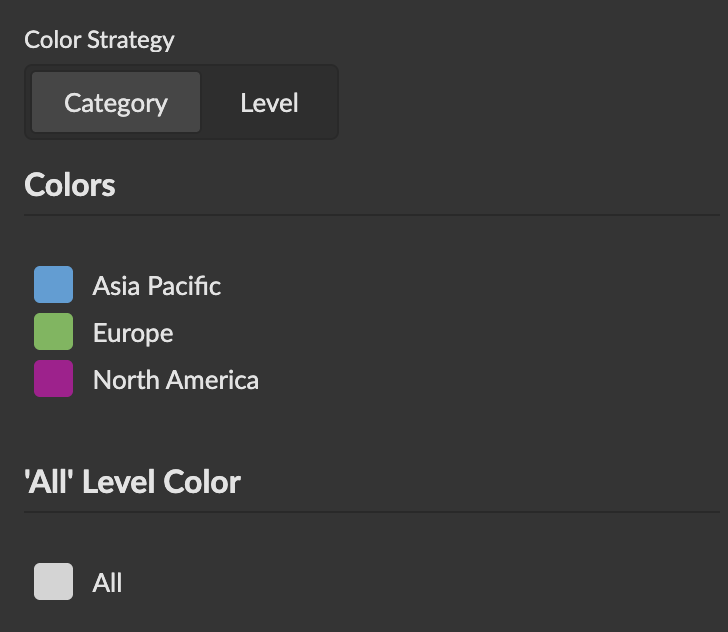
Color Strategies
Category Strategy: Colors elements based on category values
- Select any column in the dataset as the category color column (not limited to hierarchy columns; defaults to the first hierarchy column if no other is selected)
- Consistent coloring across all levels for items in the same category
- Ideal for maintaining visual grouping throughout drill-down navigation
- Uses dashboard color scheme or custom color mapping
- Includes interactive legend for filtering and highlighting
Level Strategy: Colors elements based on their hierarchy level
- Each hierarchy level uses a different color
- Helpful for distinguishing between different levels of detail
- Provides clear visual separation between parent and child elements
Custom Color Mapping
Category Color Mapping:
- Assign specific colors to individual categories
- Override default color scheme for important categories
- Maintain brand consistency across visualizations
Level Color Mapping:
- Assign specific colors to hierarchy levels
- Control the color progression through levels
- Create meaningful visual hierarchies
All Level Color:
- Set custom color for the root "All" node
- Useful for branding or highlighting the total
Legend Configuration
When using the Category color strategy, an interactive legend is available to help you explore and filter your data.
Legend Display
Show/Hide Legend:
- Toggle legend visibility with the Legend checkbox in the visual configuration bar
- Legend appears only when using Category color strategy
Legend Position:
- Top Left: Position legend in top-left corner (default)
- Top Right: Position legend in top-right corner
- Bottom Left: Position legend in bottom-left corner
- Bottom Right: Position legend in bottom-right corner
Legend Interactions
The legend provides powerful filtering and highlighting capabilities:
Hover to Highlight:
- Hover over a legend item to highlight matching chart elements
- Highlighted elements maintain full opacity (1.0)
- Other elements are dimmed (0.3 opacity) for focus
- Works across all hierarchy chart types (Packed Circles, Sunburst, Treemap, Partition)
Click to Toggle:
- Click a legend item to hide/show that category
- Hidden categories are completely filtered from the chart
- Click again to restore the category
- The chart re-renders to accommodate visible categories
Alt/Option + Click to Focus:
- Hold Alt (Windows/Linux) or Option (Mac) and click a legend item to focus on that category exclusively
- All other categories are hidden, showing only the selected category
- Alt/Option + Click again on the same category to defocus and show all categories
- Useful for isolating specific categories for detailed analysis
Clear Button:
- Appears when one or more categories are hidden
- Click to restore all hidden categories at once
- Quickly reset the chart to show all data
Layout Options
Treemap Layout Algorithms
- Squarify (default): Optimizes for square-like rectangles, best readability
- Binary: Creates binary tree-like splits
- Slice: Divides space horizontally
- Dice: Divides space vertically
- Slice Dice: Alternates between slice and dice per level
Partition Orientation
- Horizontal: Elements flow from left to right
- Vertical: Elements flow from top to bottom
Customize Section
The Customize section provides advanced formatting and display options for fine-tuning your hierarchy chart appearance and behavior.
Value Formatting
Configure how numerical values are displayed throughout the chart:
Format Type:
- Number: Standard numerical formatting with precision control
- Money: Currency formatting with symbol and precision
- Percentage: Percentage display (automatically multiplies by 100)
- Bytes: File size formatting (KB, MB, GB, etc.)
- Text: Display values as-is without formatting
Number Formatting Options:
- Precision: Number of decimal places (0-10)
- Thousands Separator: Add commas for readability
- Abbreviation: Use k, M, B suffixes for large numbers
- Currency Symbol: Custom currency symbol for money format
Hierarchy Level Formatting
Control how hierarchy level labels are formatted and displayed:
Text Formatting:
- Format Type: Choose between text, number, date, or HTML formatting
- Date Formats: When using date fields, select from various date display formats
- Custom Display Names: Override default column names with meaningful labels
Label Display:
- Show/Hide Labels: Control label visibility on chart elements
- Label Positioning: Adjust label placement within chart elements
- Text Size: Control label font size for readability
Tooltip Customization
Configure the information displayed when hovering over chart elements:
Content Options:
- Show Hierarchy Path: Display full path from root to current element
- Show Values: Include formatted values in tooltips
- Custom Formatting: Apply specific formatting to tooltip content
- Series Names: Show/hide series names in tooltip headers
Interactivity Settings
Interactive Mode (default: enabled):
- Enabled: Full click-to-drill functionality with hover effects
- Disabled: Static visualization showing all levels simultaneously
Auto-Drill (Packed Circles & Treemap only):
- Automatically drills into the root level on chart load
- Provides immediate focus on actual data rather than the "All" container
Hide Top Level (Partition only):
- Enabled: Hides the root "All" container, starting visualization directly with first hierarchy level
- Disabled (default): Shows complete hierarchy including root "All" container
- Useful for cleaner partition displays when the root container adds no meaningful information
- When enabled, color palette utilization is optimized (no color reserved for hidden root)
Performance and Limitations
The chart efficiently handles hierarchical datasets with multiple levels and categories. Performance depends on:
- Hierarchy Depth: Deeper hierarchies require more processing
- Data Volume: Large numbers of leaf nodes impact rendering speed
- Chart Type: Some layouts (like Treemap) are more computationally intensive
- Interactivity: Non-interactive mode renders faster for static displays
Recommended Limits:
- Hierarchy Levels: 5-6 levels for optimal performance
- Leaf Nodes: Up to 1000 leaf nodes per level
- Categories per Level: Up to 50 categories per hierarchy level
Examples
Sales Performance by Region and Category
SELECT
  region,
  category,
  subcategory,
  SUM(sales_amount) as total_sales,
  COUNT(DISTINCT customer_id) as customer_count
FROM sales_data
WHERE sale_date >= '2024-01-01'
GROUP BY region, category, subcategory
ORDER BY region, category, subcategory
Configuration:
- Chart Type: Packed Circles or Treemap
- Hierarchy Series: Region → Category → Subcategory
- Value Series: Total Sales
- Color Strategy: Category (consistent colors per category across regions)
- Category Color Column: Category (or Region for regional comparison)
- Legend: Enabled with Top Right position
- Interactive: Enabled for drill-down exploration
Usage Tips:
- Use legend hover to highlight specific categories across all regions
- Alt/Option + Click legend items to focus on individual categories
- Click legend items to temporarily hide underperforming categories
Organizational Structure Analysis
SELECT
  department,
  team,
  role,
  COUNT(*) as employee_count,
  AVG(salary) as avg_salary
FROM employees
GROUP BY department, team, role
ORDER BY department, team, role
Configuration:
- Chart Type: Sunburst or Partition
- Hierarchy Series: Department → Team → Role
- Value Series: Employee Count
- Color Strategy: Level (different color per hierarchy level)
- Interactive: Enabled for organizational navigation
Website Traffic Hierarchy
SELECT
  traffic_source,
  campaign,
  landing_page,
  SUM(sessions) as total_sessions,
  SUM(conversions) as total_conversions
FROM web_analytics
WHERE date >= CURRENT_DATE - INTERVAL '30 days'
GROUP BY traffic_source, campaign, landing_page
ORDER BY traffic_source, campaign, landing_page
Configuration:
- Chart Type: Treemap with Squarify layout
- Hierarchy Series: Traffic Source → Campaign → Landing Page
- Value Series: Total Sessions
- Color Strategy: Category (consistent colors per traffic source)
- Category Color Column: Traffic Source
- Custom Colors: Brand colors for key traffic sources
- Legend: Enabled with Bottom Right position
Usage Tips:
- Click legend items to filter out low-performing traffic sources
- Use Alt/Option + Click to analyze individual traffic sources in isolation
- Hover over legend to quickly identify all campaigns from a specific source
Budget Allocation Breakdown
SELECT
  cost_center,
  budget_category,
  line_item,
  SUM(allocated_amount) as budget_allocation,
  SUM(spent_amount) as actual_spend
FROM budget_data
WHERE fiscal_year = 2024
GROUP BY cost_center, budget_category, line_item
ORDER BY cost_center, budget_category, line_item
Configuration:
- Chart Type: Partition (horizontal orientation)
- Hierarchy Series: Cost Center → Budget Category → Line Item
- Value Series: Budget Allocation
- Color Strategy: Level with custom level colors
- Interactive: Enabled for budget drill-down analysis
- Hide Top Level: Enabled for cleaner budget category focus
Best Practices
Data Preparation:
- Include ORDER BY: Ensure consistent ordering for predictable visual layout
- Handle NULL Values: Use
COALESCE()orISNULL()to replace NULL hierarchy values - Optimize Aggregation: Pre-aggregate data for better performance with large datasets
- Meaningful Hierarchies: Structure hierarchy levels from general to specific
Chart Configuration:
- Choose Appropriate Type: Packed Circles for proportional emphasis, Sunburst for radial data, Treemap for space efficiency, Partition for linear flow
- Color Strategy: Use Category for top-level grouping, Level for hierarchy depth differentiation
- Category Color Column: Choose the most meaningful column for category-based coloring (not limited to hierarchy columns)
- Legend: Enable legend when using Category strategy for interactive filtering and exploration
- Legend Position: Position legend to avoid overlapping with important chart elements
- Interactivity: Disable for static dashboards, enable for exploration
- Hide Top Level (Partition only): Enable when root container adds no value
Formatting and Customization:
- Value Format: Choose number, money, or percentage based on data type
- Precision: Use fewer decimals for large numbers
- Abbreviations: Use k, M, B for large datasets
- Label Formatting: Apply consistent date/number formatting across levels
- Tooltips: Include relevant context without overwhelming users
Performance:
- Limit Depth: Keep to 5-6 levels maximum
- Pre-filter Data: Use WHERE clauses to reduce dataset size
- Strategic Aggregation: Balance detail with performance
- Non-Interactive Mode: For large datasets without drill-down needs
User Experience:
- Hierarchy Order: Structure levels from broadest to most specific
- Clear Naming: Use descriptive names for hierarchy levels
- Color Consistency: Maintain consistent color meanings across charts
- Container Sizing: Ensure adequate space for data complexity
- Context: Include descriptive titles and legends
- Legend Interactions: Leverage hover, click, and Alt/Option+click for data exploration
- Focus Mode: Use Alt/Option+click to isolate specific categories for detailed analysis
Visual Design:
- Color Contrast: Ensure sufficient contrast between adjacent colors
- Label Readability: Test labels remain readable across hierarchy levels
- Responsive: Verify appearance across screen sizes
- Brand Colors: Use custom colors for organizational alignment